To check if a WordPress theme is safe, buy it from a seller with a real business behind it, look at the last update date and changelog, scan the zip file before you upload it, and test it on a backup or staging copy first. Five minutes of checking costs far less than cleaning a hacked site.
This guide gives you a seven-step check you can run on any theme, free or paid, a list of red flags that should make you stop, and answers to the questions buyers ask most often.
Why a theme can put your site at risk
A theme is not just a coat of paint. It is code that runs on your server and controls what every visitor sees. If that code is outdated, sloppy or deliberately modified, it can break your site, slow it down or open a door for attackers.
The risk usually comes from three places:
- Tampered files. A theme that is sold for money in one place but offered free on a random download site may have been changed before it reached you.
- Abandoned code. WordPress keeps changing. A theme that is never updated can fall behind and leave known problems unfixed.
- Careless coding. Forms and settings that do not check what people type, or bundled plugins nobody maintains, create weak points even when the theme looks great.
The good news is that you can spot most of these problems before you buy or install anything.
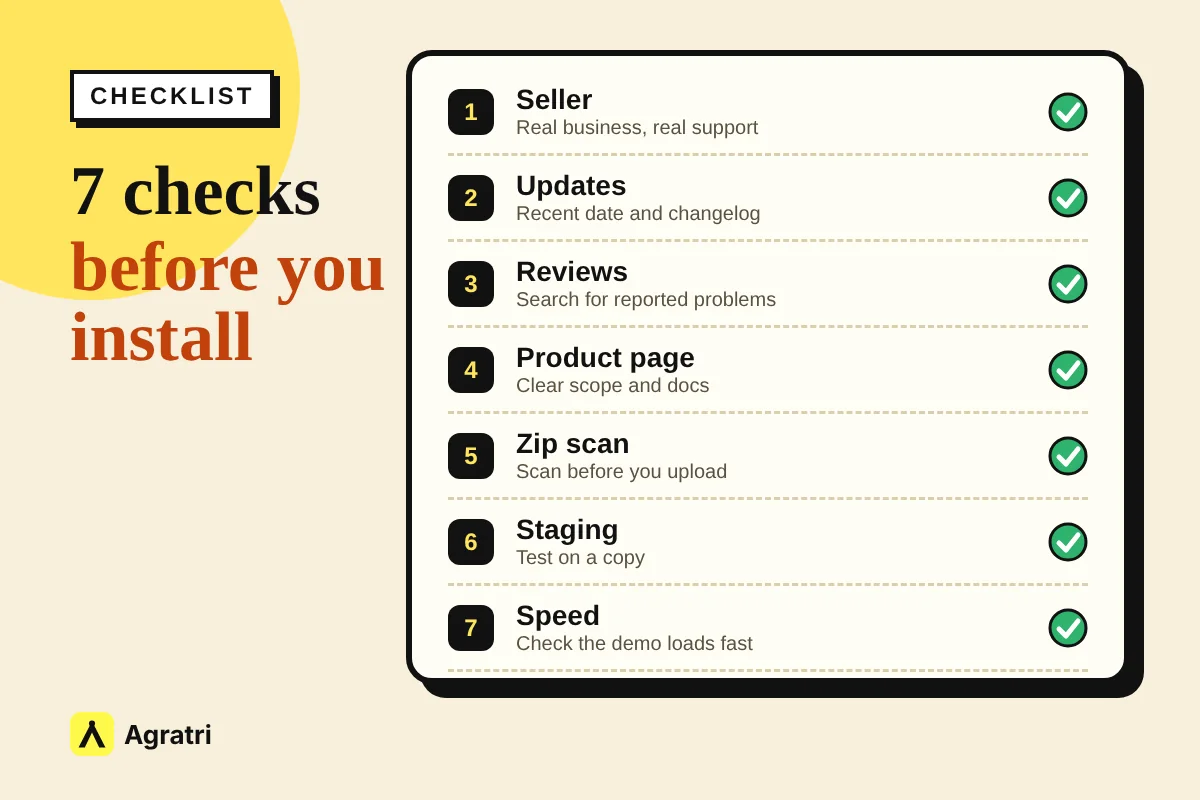
How to check if a WordPress theme is safe: 7 steps
Step 1: Check who sells the theme
Start with the source. For free themes, the official WordPress.org theme directory is the safest place, because every listed theme is reviewed by a person before it goes live. For paid themes, buy from a shop that has a real name, a contact page, clear policies and visible support.
Ask yourself: if something goes wrong, can I reach someone? A seller that hides behind a download button and has no way to contact it is a warning sign by itself.
Step 2: Look at the last update date and the changelog
A safe theme is a maintained theme. Open the product page and look for the last update date. Then read the changelog if there is one. You want to see regular fixes and compatibility notes, not a long silence.
Also check which WordPress and PHP versions the theme says it supports. If the seller cannot tell you, the theme may not be kept up with how WordPress works today.
Step 3: Search for problems before you pay
Type the theme name and the seller name into a search engine with words like “problem”, “vulnerability” or “malware”. If a serious issue was reported and never fixed, it usually shows up. Also read buyer comments and support threads. Look at how fast the seller replied and whether the issue was fixed.
Step 4: Read what the product page promises, and what it leaves out
A clear product page lists what is included, which page builder it needs, whether demo content is provided and how updates and support work. Be careful with a theme that claims to do everything. A theme that tries to be a blog, a store, a portfolio and a page builder at once often ships a lot of code you will never use.
Step 5: Open the zip and scan it before you upload
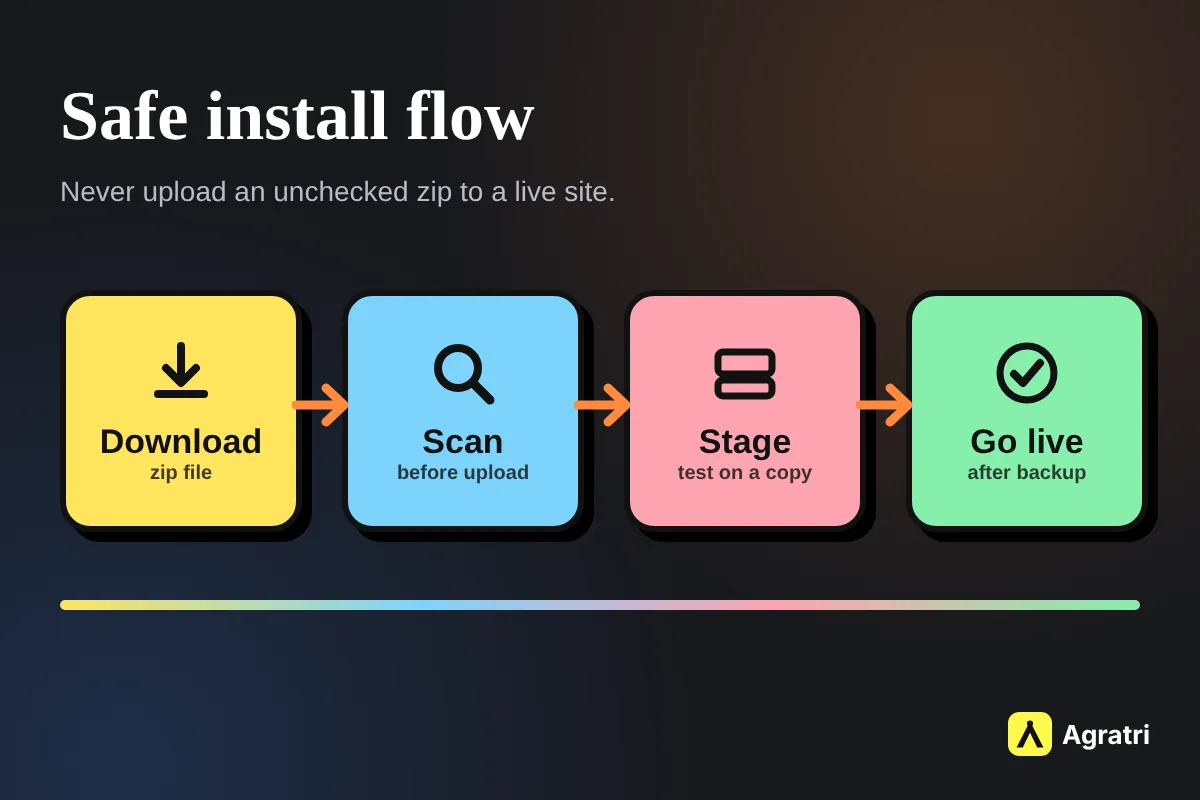
Do not upload a theme straight into a live site. Download the zip to your computer, extract it and look at the file list. A normal theme contains template files, stylesheets, scripts, images and a few documentation or language files. Unexpected executable files or oddly named scripts are reasons to stop.
Then run the zip through a malware scanner. VirusTotal is a free option that checks a file against many scanners at once. A clean result does not prove perfect safety, but a flagged result tells you to look elsewhere.
Step 6: Test on a copy, not on your live site
Install the theme on a staging site or a local copy first. Before you do, make a full backup of your real site. On the copy, run a theme checker plugin such as Theme Check, which tests a theme against WordPress review standards. A failed check does not always mean danger, and a pass does not mean a theme is perfect, but it shows you what to ask the seller.
Step 7: Measure speed and clean up after yourself
Run a speed test on the demo and on your staging copy. Heavy themes load extra scripts and styles on every page, which hurts both visitors and search rankings. Once you pick a theme, delete the ones you no longer use, because an unused theme that is out of date can still be a risk.
Safe theme or risky theme: quick comparison
Use this short list when you are comparing two themes side by side.
Signs of a safe theme
- A named seller with a contact page, support channel and clear policies
- A recent update date and a changelog that shows steady fixes
- A clean scan result on the downloaded zip
- Clear documentation and a demo that loads quickly
- Only the plugins it really needs, with a clear explanation of why
Red flags that should make you stop
- A paid theme offered free on a site with no seller details
- No update for a long time, or no mention of supported WordPress versions
- A download page that asks you to turn off your antivirus or run an installer
- A huge file size, many bundled plugins and a demo that feels slow
- No way to contact the seller before you buy
What if the theme is already on your site?
If you installed a theme you are not sure about, you do not need to panic. Take a backup, run a malware scan from your security plugin or your host, check the theme folder for files you do not recognize and compare the theme against a fresh download from the original seller. If you find anything strange, switch to a trusted theme and ask your host or a developer to help clean the site.
How Agratri handles theme safety
Every product in the Agratri store is reviewed, malware-scanned and quality-checked before it is listed, and products are kept up to date. If something is wrong with a product, our refund page explains how we fix it or refund you. You can browse the full range on our WordPress themes page and run the same seven steps on any demo.
Not sure which kind of site you need first? Read our guide on HTML template vs WordPress theme. If you plan to change a theme heavily, our comparison of theme customization vs a custom theme shows when each option makes sense. For a business site, the checklist for an IT services company theme covers pages, speed and trust in detail.
Frequently asked questions
How can I tell if a WordPress theme is safe to install?
Check the seller, the last update date and the changelog, scan the zip file with a tool such as VirusTotal, and test the theme on a staging copy with a backup in place. No single check is perfect, so use all of them together.
Are free WordPress themes safe?
Free themes from the official WordPress.org directory are reviewed before listing and carry few risks. Free copies of paid themes from random sites are the risky ones, because you cannot know who changed the files.
How do I scan a WordPress theme for malware?
Extract the zip on your computer and look for unexpected files. Upload the zip to VirusTotal, then run a malware scanner plugin on your staging site. If anything is flagged, choose a different theme or contact the seller.
How often should a premium theme be updated?
There is no fixed rule, but a maintained theme shows recent updates and a changelog that tracks WordPress changes. A theme with no updates for a long time is a reason to ask the seller questions before you buy.
Can a theme slow down my site?
Yes. Themes that load large scripts, many bundled plugins or unused features on every page can slow a site down. Test the demo with a speed tool and compare it with your staging copy.
Next step: choose a theme you can check
A safe theme is one you have looked at before you paid for it. Browse the Agratri WordPress themes, run the seven steps on a demo, and if you have a question before you buy, contact our team.