A safe WordPress migration comes down to five things: a full backup, a record of your current SEO and URLs, a tested copy on the new host, a careful DNS switch that keeps email working, and a round of checks after launch. Skip any one of them and you risk broken pages, lost rankings or missing email.
This checklist walks you through each phase in order, shows the mistakes that cause the most damage, and explains when it makes sense to hand the move to a specialist.
What is a WordPress migration?
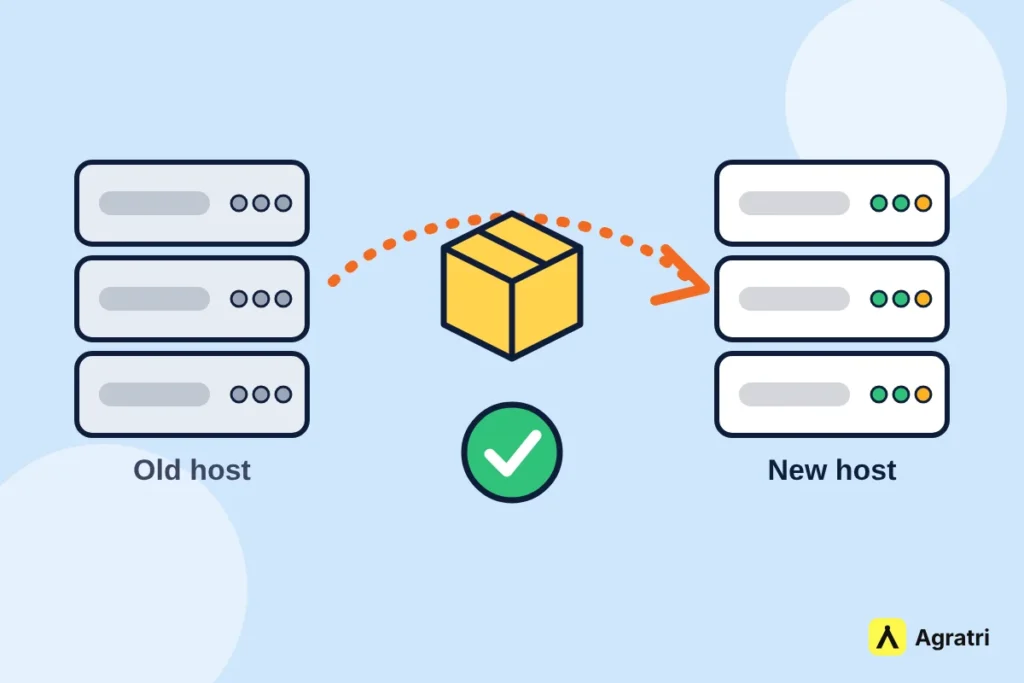
A WordPress migration means moving your site from one place to another. That can be a new host, a new domain, a new server setup, or a move from another platform or a static HTML site into WordPress. A migration copies your files and your database, then points your domain to the new location.
Most people worry about two things: downtime and search rankings. Both are manageable. The risk is rarely the copy itself. It is the small details around it, such as redirects, hidden files, DNS records and email.
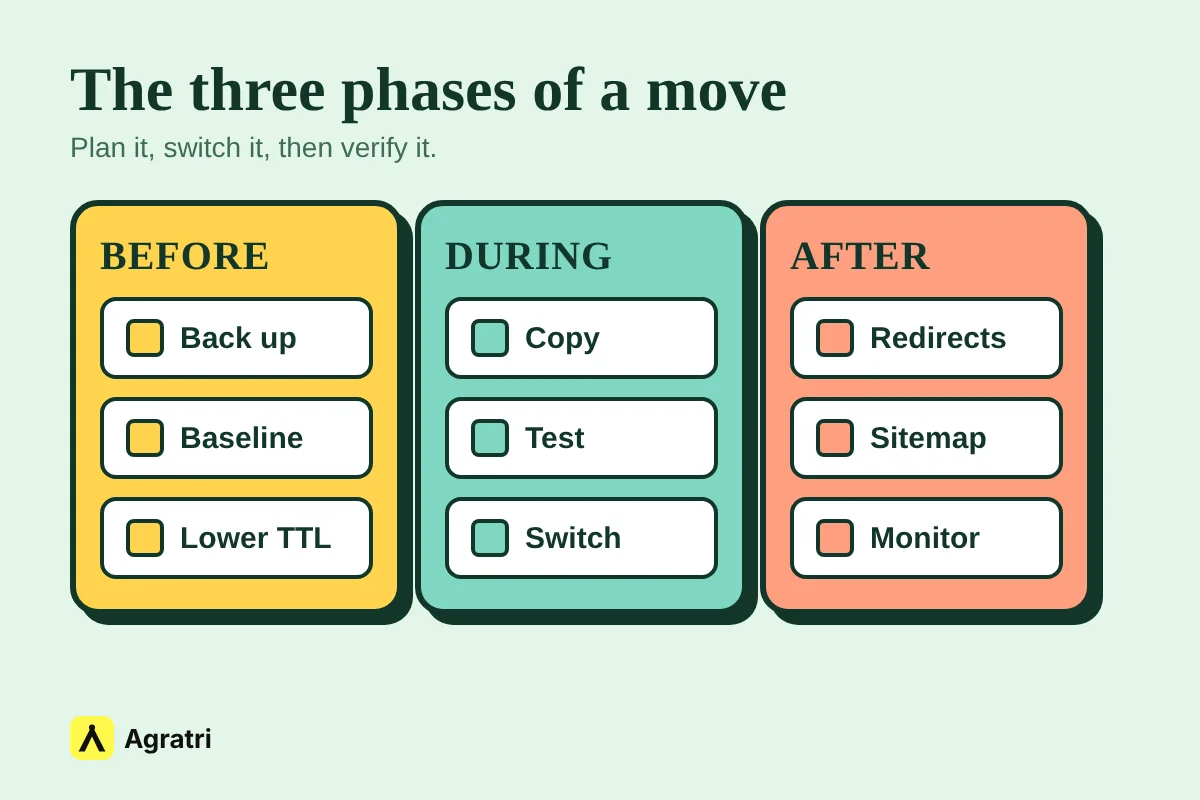
Before you migrate: preparation checklist
1. Make a full backup
Back up every file and the whole database, and store the backup somewhere other than your current host. This is your way back if anything goes wrong. Check that the backup actually opens before you rely on it.
2. Record your SEO baseline
Note your current organic traffic, your top pages and the keywords that bring visitors, using Google Search Console and your analytics tool. Without a baseline, you cannot tell whether a drop after the move came from the migration or from normal ups and downs.
3. Crawl and export your URLs
Use a site crawler to export every URL with its title, meta description and headings. This list becomes your map for redirects and your test list after launch. Keep the same permalink structure if you can, because unchanged URLs need no redirects at all.
4. Check the new host
Confirm that the new host supports the PHP and MySQL versions your site needs, that SSL is available and that it has enough resources for your traffic. A host that is a poor fit turns a clean migration into a slow site.
5. Lower your DNS TTL
TTL controls how long DNS settings stay cached. Lower it a day or two before the switch, so that when you change the records, visitors reach the new server sooner instead of waiting on old settings.
6. Freeze changes and list your email setup
Agree a short window with your team where nobody publishes new posts, orders or comments, so nothing is lost in between. Also write down where your email lives and which DNS records it uses. Mail records are one of the things people most often forget.
During the migration: moving the site
7. Copy files and database to the new host
Move the whole WordPress folder, including hidden files such as .htaccess, and import the database. Update the database settings in the configuration file so the site connects to the new database. If your domain stays the same, the content links stay valid.
8. Test the copy before you switch
Work on the new host before the domain points to it. A common method is to edit the hosts file on your computer so your browser loads the new server while everyone else still sees the old one. Click through your key pages, forms, logins, images and plugins, and confirm that SSL works.
9. Keep the test copy out of search results
If the copy sits on a temporary address, block search engines from indexing it. Then remove that block before launch, so it does not carry over to the live site by mistake.
10. Switch DNS and keep email records intact
Change the domain records to point to the new server. If your email is hosted elsewhere, leave the mail records exactly as they are, and only change what the website needs. Keep the old host active until you have confirmed that everything works on the new one.
After the migration: SEO and quality checks
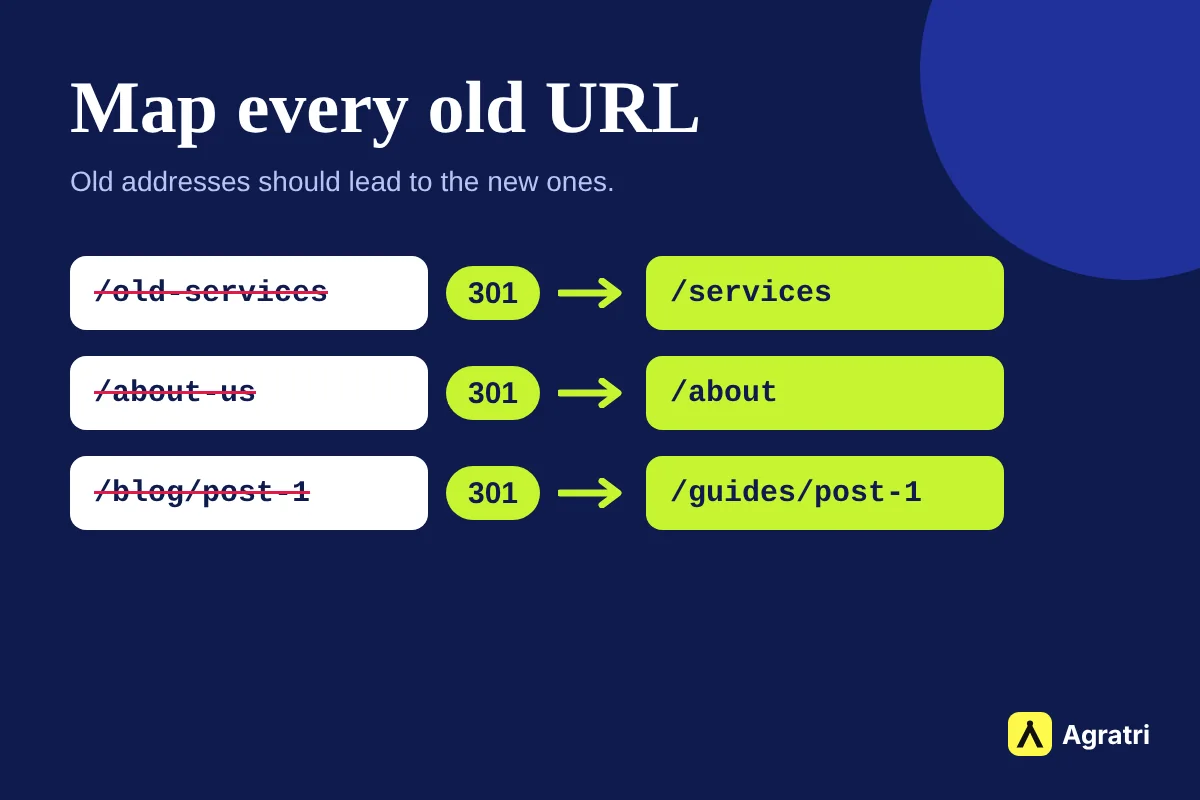
11. Re-save permalinks and test redirects
Re-save your permalink settings so the rules in .htaccess are rebuilt. If any URL changed, set up a 301 redirect from the old address to the new one, then test for errors and redirect loops.
12. Check robots.txt, canonicals and noindex settings
Make sure the live robots.txt file is not blocking important pages, that canonical tags point to the right addresses and that no leftover noindex setting from testing is still active. These small leftovers can quietly remove pages from search results.
13. Submit your sitemap and inspect key pages
Submit the updated XML sitemap in Google Search Console and use the URL Inspection tool on a few important pages to confirm they can be crawled and indexed.
14. Test everything a visitor or customer uses
Submit every form, test the login, run a checkout if you sell online, and send and receive a test email. Check images, menus and links on mobile as well as on desktop.
15. Check speed and monitor results
Compare speed and Core Web Vitals against your baseline. A new host should not make the site slower. Then watch Search Console and analytics for indexing errors or traffic drops over the following weeks, and fix problems quickly.
Common WordPress migration mistakes
- Forgetting hidden files. Missing .htaccess rules can break your URL structure.
- No SEO baseline. You cannot measure what you did not record.
- Not lowering TTL. Old DNS settings linger longer than they should.
- Breaking email. Changing mail records along with the website records.
- Leaving search blocks on. A testing noindex or a blocking robots.txt carried over to the live site.
- Cancelling the old host too early. Keep it until the new site is confirmed working.
When to hire a specialist for your WordPress migration
You can follow this checklist yourself for a small site with a few pages. Consider help when the site earns money or leads, when many URLs will change, when email is tied to the domain, or when you simply do not have time to test every page.
The Agratri WordPress migration service moves your files, database and email-safe DNS, and checks that everything works before you switch. If your site also feels slow after the move, our performance optimization service can audit and speed it up. Moving from a static site? Our guide to HTML template vs WordPress theme helps you decide on the right format, and if you plan a redesign at the same time, read theme customization vs a custom theme first.
Frequently asked questions
How do I migrate a WordPress site without losing SEO?
Record your rankings and URLs first, keep the same permalinks where possible, set 301 redirects for any URL that changes, avoid leaving blocks on search engines, and submit your sitemap after launch. Then monitor Search Console against your baseline.
Can I migrate WordPress without downtime?
You can keep downtime very short by building and testing the copy on the new host first, lowering the DNS TTL beforehand and only then switching the domain. Some visitors may see the old site for a short time while DNS updates.
Will migrating my site affect my email?
It can, if mail records are changed by mistake. Write down your email DNS records before you start, change only the records the website needs and send a test email after the switch.
What should I check after moving a WordPress site?
Check redirects, permalinks, robots.txt, canonical tags, forms, login, SSL, images and plugins. Then submit your sitemap, test a few pages in URL Inspection and watch speed and traffic against your baseline.
Should I keep my old hosting after the migration?
Yes, keep it active until you have confirmed that the new site and your email work correctly. It gives you a safe fallback if something was missed.
Next step: move with a plan
A migration is simple when every step is planned and tested. If you would rather not do it alone, contact the Agratri team or read about the WordPress migration service.