A WHMCS WordPress theme gives a hosting company a public website and a billing portal that look like one brand. WordPress shows your plans and your story. WHMCS handles orders, invoices and client accounts. This guide explains what to check before you choose one.
You will get eight checks, a short list of who needs this kind of theme and answers to common questions. Along the way, we use one real example from our shop.
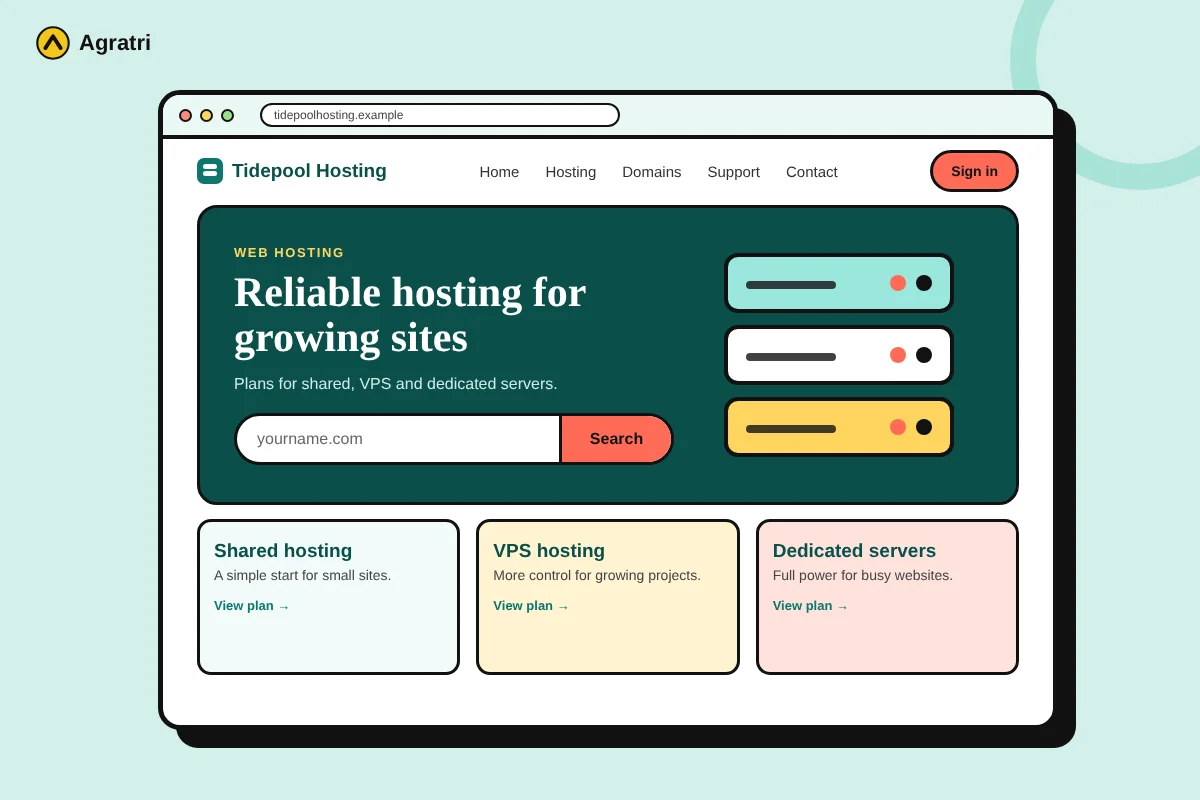
What Is a WHMCS WordPress Theme?
WHMCS is billing and automation software for hosting companies. It handles signups, invoices, domains and support tickets. WordPress, on the other hand, runs your public website.
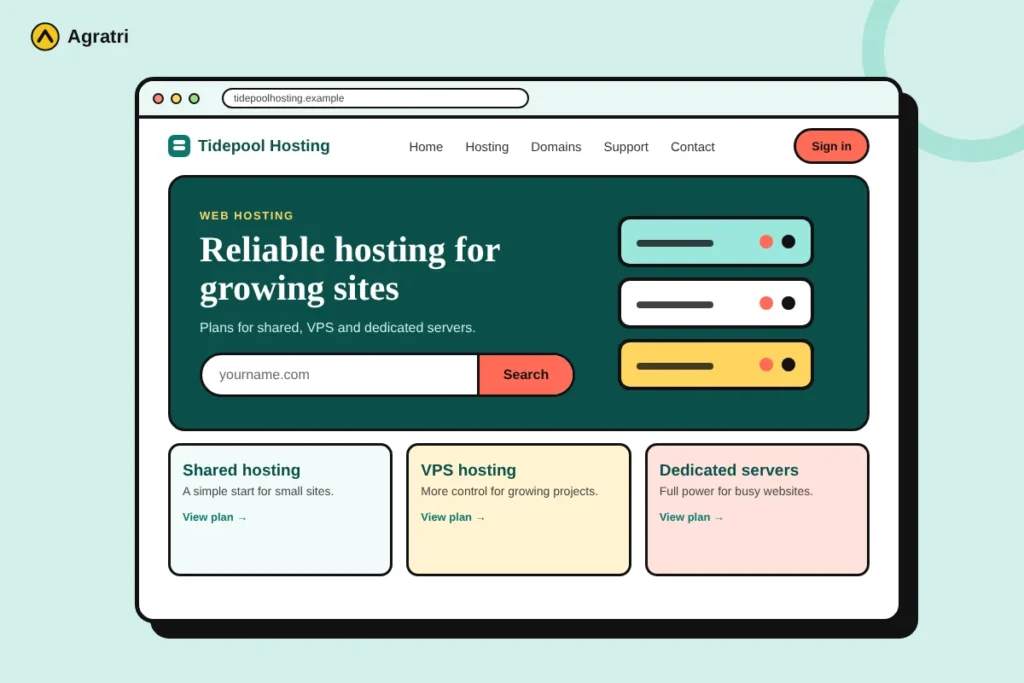
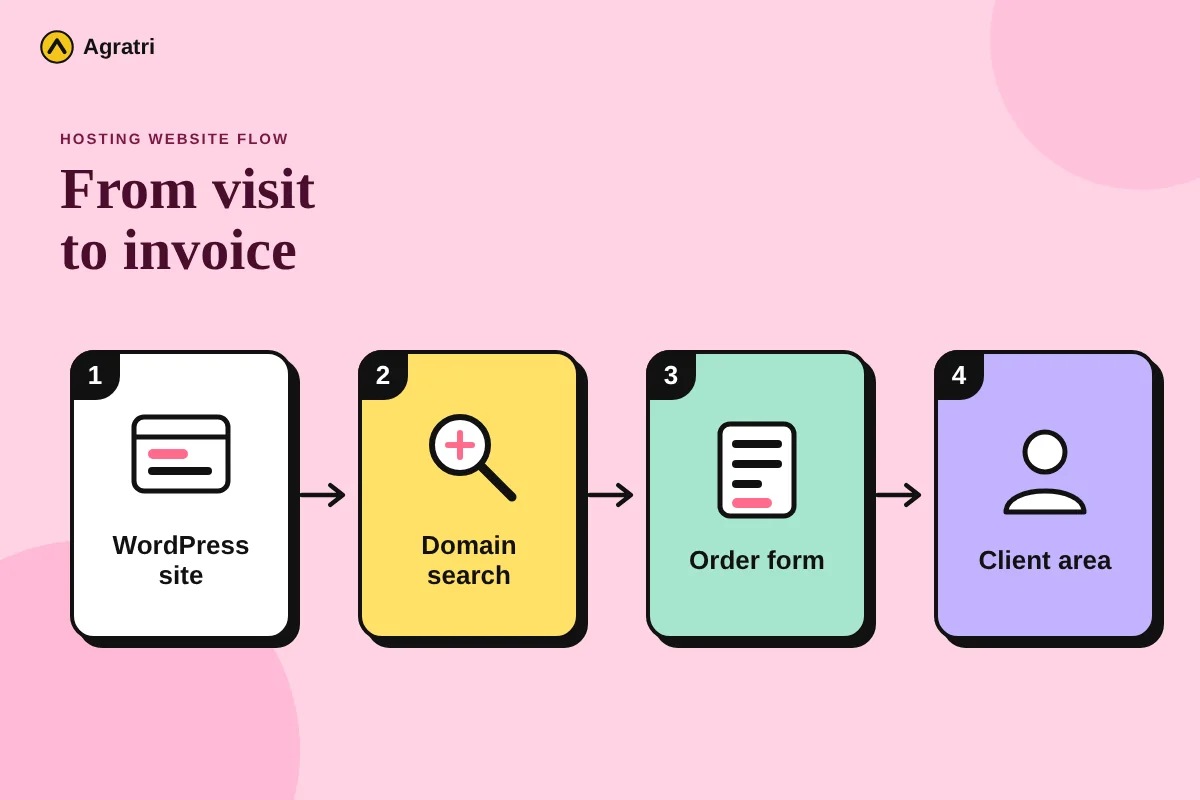
A WHMCS WordPress theme connects the two sides. It styles your WordPress pages for hosting content. It also comes with templates for the WHMCS client area. As a result, visitors move from your home page to checkout without a clash in design.
Why does this matter? Customers judge a hosting company by how careful its website looks. So a checkout that looks different from the home page can make a buyer doubt the service. A matched design also feels more trustworthy, because every page looks like the same company.
Not every hosting theme does this well. Some look good on the home page and nowhere else. For that reason, the checks below focus on the parts that real customers use.
Who Needs a WHMCS WordPress Theme?
This type of theme fits several kinds of businesses:
- Hosting startups that want a professional site fast.
- Resellers who sell shared or VPS plans under their own brand.
- Domain sellers and registrars that need a strong domain search.
- Web agencies that build hosting sites for clients.
If you sell only one or two plans, a simple theme may be enough. However, once you take orders and bill customers every month, a matched design saves time and keeps your brand clear.
8 Checks Before You Choose a WHMCS WordPress Theme
Use these checks in order. Each one covers a part of the customer journey, from the first visit to the first invoice. Open a demo of every WHMCS WordPress theme on your shortlist, and then work through the list.
1. Look for a matching WHMCS template
Your client area is where customers pay and open tickets. If it looks different from your site, trust drops. Choose a WHMCS WordPress theme that includes client area templates, and check whether each layout has its own match. Also look for right-to-left support if you serve those languages.
2. Check how plans reach your site
Typing every plan into two systems wastes time and invites mistakes. Also ask whether the theme can import products from WHMCS. Product import saves you from entering each plan twice, so setup goes faster.
3. Test the pricing and comparison tables
Pricing tables sell hosting plans, so they must be clear. Open them on a phone and check that they stack cleanly. A comparison table helps buyers choose between plans. Likewise, a price slider helps when you sell VPS plans.
4. Try the domain search
Many customers start with a domain search, so it should feel fast and simple. Look for a table that shows prices for each domain ending. Some themes also suggest name ideas, so test them with a few real names.
5. Match the layouts to your hosting type
Shared hosting, VPS, dedicated servers and domain sales each need a different page. A theme with a demo for each type saves setup time. In contrast, a one-size layout forces you to rebuild every page yourself. For example, a VPS page needs a plan slider, while a domain page needs a search box and a price table.
6. Confirm the page builder fit
Choose a WHMCS WordPress theme that works with the builder your team knows. Elementor, WPBakery and the block editor are the common options. In addition, look for a child theme so you can change styles safely.
7. Check speed and mobile layout
A slow hosting website sends the wrong message, because customers expect a host to be fast. Run a speed test on the demo and open it on your phone. Check the menu, the tables and the order form. If any of them breaks on a small screen, keep looking.
8. Review updates and support
WHMCS changes over time, so your theme must keep up. Read the change log for recent compatibility notes. Then look at the documentation and the support options. For a longer routine, read how to check if a WordPress theme is safe.
Common Mistakes When You Pick a WHMCS WordPress Theme
Many hosts make the same errors. Avoiding them can save weeks of rework.
- Judging by the home page only. The order form and client area matter more, so test those first.
- Ignoring mobile. Many buyers compare plans on a phone, so check the tables there.
- Skipping the test order. A broken checkout costs sales, so always place one before launch.
- Choosing by looks alone. A pretty theme still needs updates and support.
In short, test the whole journey, not only the first page.
A Real Example: Hostiko for Hosting Websites
Our shop offers Hostiko, a WHMCS WordPress theme for web hosting companies, domain registrars and tech businesses. Its product page lists layouts for VPS hosting, shared hosting, dedicated servers and domain sales. It also lists pricing tables, comparison tables, a VPS price slider and an advanced domain search.
On the WHMCS side, the page lists matching templates for every layout and automatic product import. The theme works with Elementor, WPBakery and Gutenberg, and it includes a child theme. Read the full feature list on the product page, because it shows exactly what you get.
Before You Launch Your Hosting Site
A hosting site handles real orders, so test everything first. Follow these steps:
- Install the theme on a staging copy of your site.
- Follow the theme documentation to connect WHMCS and bring in your plans.
- Place a test order from the home page to the final invoice.
- Check every page on a phone and on a desktop.
- Back up your site, then go live.
If you move an existing hosting site, use our WordPress migration checklist to protect your search rankings. If you want colors, sections or features changed, see our theme customization service.
Frequently Asked Questions
What is the best WHMCS WordPress theme?
No single theme is best for every host. Pick one with matching WHMCS templates, pricing tables, domain search and regular updates. Then test the demo on your phone before you buy.
Do I need WHMCS to use a hosting theme?
No, a hosting theme can work as a plain marketing site. However, WHMCS adds billing, client accounts and automation for hosting. If you plan to take orders, the combination saves a lot of manual work.
How do I make WHMCS look like my WordPress site?
Choose a theme that includes matching WHMCS templates. Then use the same logo, colors and fonts on both sides. Finally, place a test order to check that checkout feels like one site.
Does a hosting theme work with Elementor?
Many do, but you should check the product page. Hostiko lists support for Elementor, WPBakery and Gutenberg. In any case, pick the builder your team already knows.
Can I change a hosting theme later?
Yes. A child theme lets you change styles without editing the parent theme. For bigger changes, you can ask us for help on our contact page.
Choose a WHMCS WordPress Theme With Confidence
A good WHMCS WordPress theme makes your hosting site look like one brand. That holds from the first visit to the first invoice. Run the eight checks, test the demo on a phone and read the change log. Then place a test order before you launch.
Ready to compare? Look at the Hostiko hosting theme, or tell us what you are building on our contact page. We will point you to a fitting theme or service.