An accessible WordPress theme lets every visitor read, navigate and buy from your site, whatever device or assistive tool they use. Before you pay for one, you can test it yourself with a keyboard, a zoom setting and a few simple checks. This guide gives you eight checks to run on any theme demo.
Many buyers trust the label on a sales page. However, a label is only a starting point. A demo that you test yourself tells you far more, so the steps below show you exactly how to do it.
What an accessible WordPress theme really means
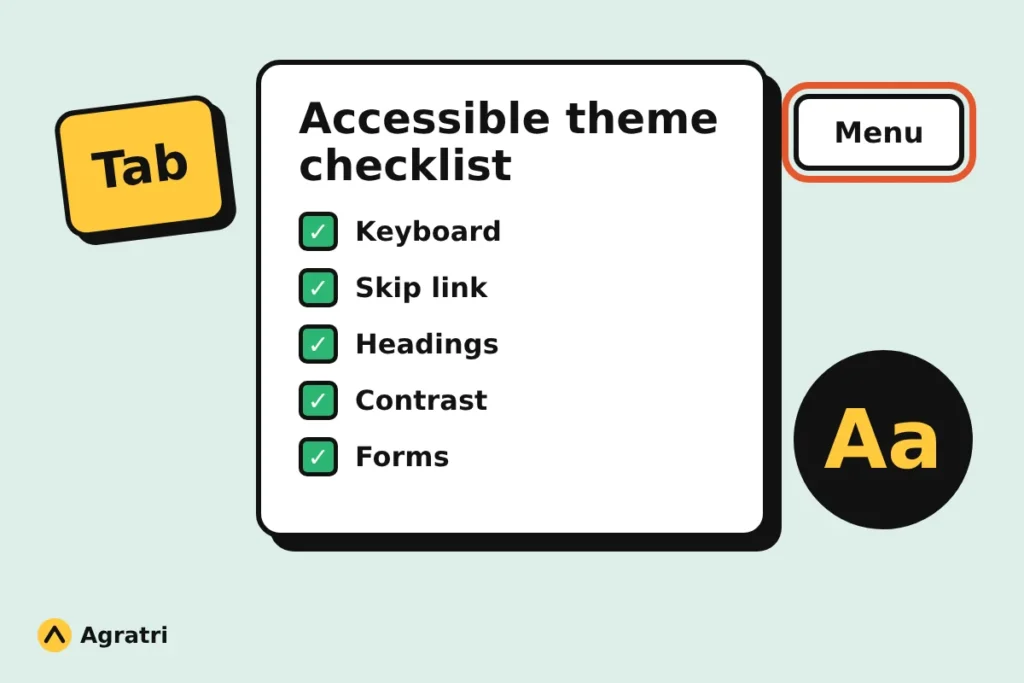
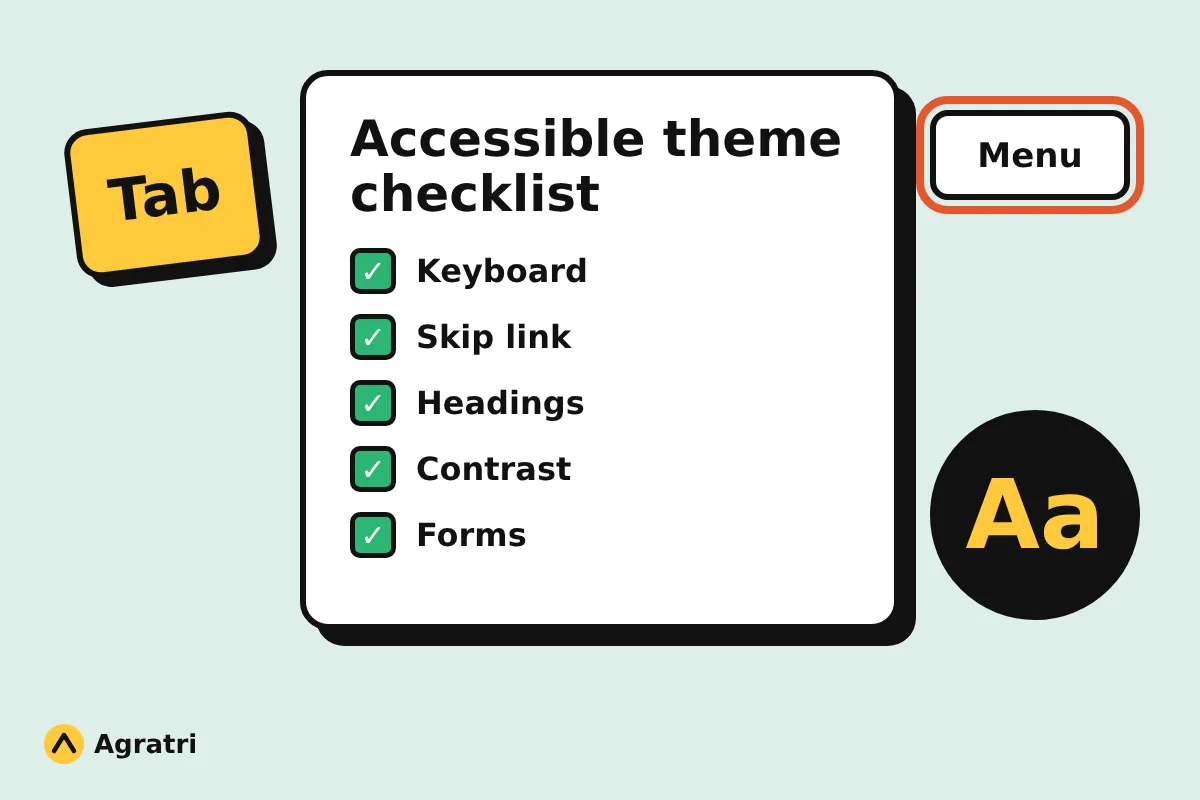
An accessible WordPress theme is built so that people with different abilities can use the pages it creates. That includes people who navigate with a keyboard, use a screen reader, need large text or have low vision. The WordPress.org theme team publishes requirements for its accessibility-ready tag. The list covers skip links, keyboard support, labelled form fields, heading structure and color contrast.
That tag is helpful, but it has limits. It reviews a fixed list of items, so a theme with the tag can still have gaps. In addition, a theme only controls the template layer of your site. Your content, plugins and page builder blocks shape the final result too. For example, even the best theme cannot write meaningful alt text for your photos.
Who should run these checks
Local business owners should check first, because a clinic, a restaurant or a shop needs every customer to book or buy without friction. Agency owners and freelancers should check too, since clients come to them when a theme causes problems. Developers who build for schools, public bodies or nonprofits often receive accessibility requirements in the brief. Startup founders gain as well, because repairing a theme after launch usually takes more effort than choosing well at the start.
8 checks before you buy an accessible WordPress theme
Run every check on the plain default demo, not on a polished starter site. The default install shows how the theme was really built. Also open the demo on a laptop and on a phone, because problems often appear on only one of them.
1. Navigate with the keyboard only
Put your mouse aside and press the Tab key. A clear outline should move from link to link in a logical order. Next, open the main menu with the Enter key and move through its items. If the outline disappears or you get trapped in a menu, the accessible WordPress theme you tested fails this check.
2. Look for a skip link
Press Tab once right after the page loads. A good accessible WordPress theme shows a “Skip to content” link first. This link lets keyboard users jump past the menu on every page. As a result, they reach your content in one step instead of dozens. The WordPress.org requirements list this feature by name.
3. Check the heading order
Headings give screen reader users a map of the page. Each page should have one H1, with H2 and H3 headings nested in a sensible order. However, some themes choose heading levels for their size instead of their meaning, and that creates confusion. To check, use a free browser extension that lists the headings on a page.
4. Test color contrast
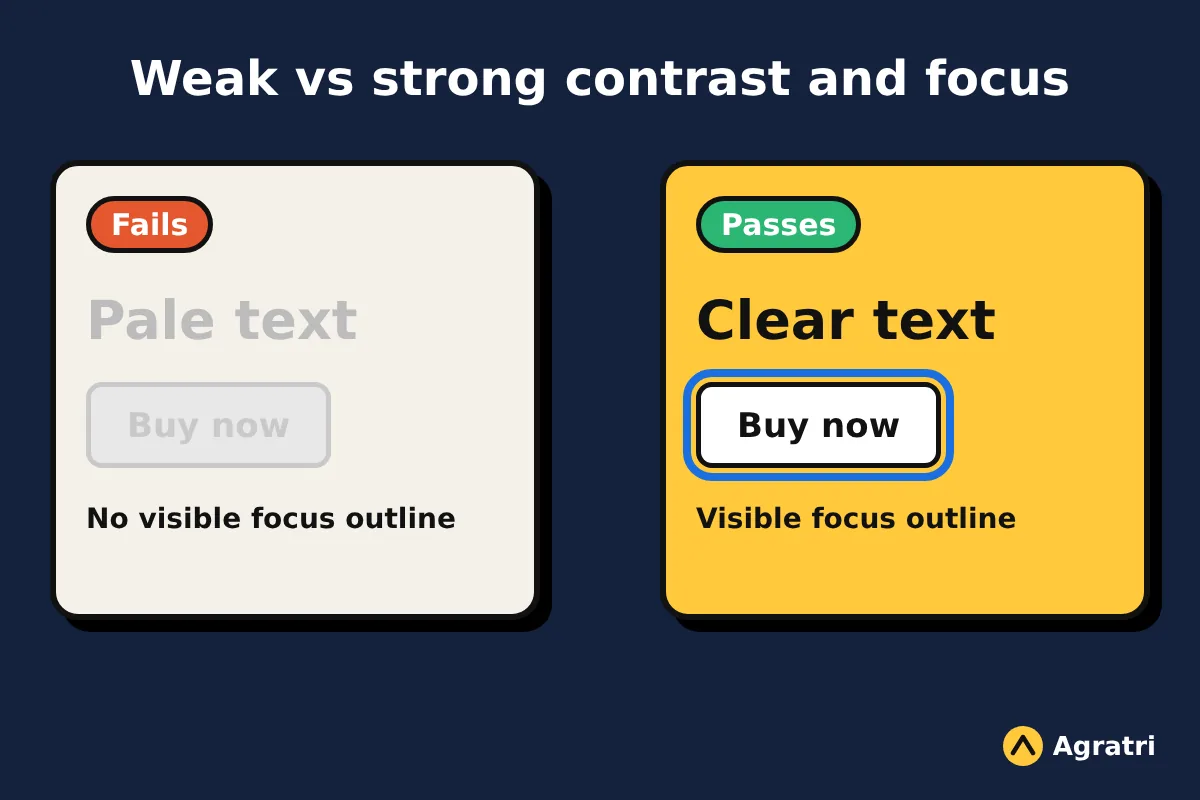
WCAG asks for a contrast ratio of at least 4.5:1 for normal text and 3:1 for large text. Check the body text, the buttons and the footer links. Pale grey text on a white background is a common failure. Also look at any text placed over a hero image, because contrast changes with the photo you choose.
5. Open the forms
Find the contact form, the search box and any checkout fields. Each field needs a visible label, not only placeholder text that vanishes when you type. Error messages should appear as text. In addition, color alone must not signal a problem, because some visitors cannot tell red from green.
6. Try menus and sliders on a phone
Open the demo in your phone browser or use the device mode in your desktop browser. The mobile menu should open from a clearly named button and close again. Sliders and carousels that move on their own need a way to pause. Otherwise, many visitors cannot finish reading before the slide changes.
7. Zoom to 200 percent
Zoom the browser to 200 percent, and then to 400 percent. Text should reflow into a single column without hidden or overlapping content. Horizontal scrolling for normal text means the layout will frustrate visitors with low vision. WCAG covers this under its resize and reflow criteria, so a good theme handles it well.
8. Read the accessibility notes
Authors of a serious accessible WordPress theme say what they tested. Look for an accessibility statement, a changelog that mentions fixes and documentation for editors. The WordPress.org list names an accessibility statement as a requirement for the tag. Also check how often the author updates the theme, because an update can fix or break accessibility.
Tools that help you test
Automated checkers give you a quick first pass on any accessible WordPress theme. They catch missing labels, weak contrast and empty links in seconds. However, they cannot judge whether alt text is meaningful or whether the tab order makes sense. So treat tool results as a starting point, and then repeat the manual checks above. For the exact success criteria, the W3C offers a free quick reference for WCAG 2.2.
How the Icelander theme fits
If you want a ready-made option, Agratri lists the Icelander business portfolio and WooCommerce theme. Its product page describes it as an accessibility-ready WordPress theme and states that it meets WCAG 2.2 level AA requirements. The page also mentions keyboard and screen reader friendly markup, a proper heading structure, color contrast, right-to-left language support and an included child theme.
Even so, run the eight checks on its demo before you buy this accessible WordPress theme. That habit protects you with any theme, and it takes only a short session. If the demo passes, you can buy with confidence. If it does not, you have lost nothing.
When to ask for help with an accessible WordPress theme
Sometimes an accessible WordPress theme candidate fails one or two checks. In that case, a small change may be enough, such as stronger button colors or a clearer menu style. Our Theme Customization service adjusts colors, typography, layouts and menu styling, and it puts every change in a child theme so updates stay safe.
If you are still unsure about a theme, first read our guide on how to check if a WordPress theme is safe. It covers the technical side of a purchase, while this guide covers the human side. Together, they help you decide with a clear head. You may also want to compare free and premium WordPress themes before you commit.
Frequently asked questions
What makes a WordPress theme accessibility-ready?
A theme earns the tag when it meets the WordPress.org list of requirements. These include a skip link, keyboard navigation, labelled form fields, meaningful headings and enough color contrast. The author must also document how the theme supports accessibility.
Does an accessible WordPress theme make my whole site accessible?
No. A theme controls the layout, but you control the content. You still need clear headings, meaningful alt text and readable links. In addition, plugins and page builder blocks can add problems that the theme does not have.
Is a premium accessible WordPress theme better than a free one?
Not automatically. Price tells you about features and design, not about accessibility, so a premium accessible WordPress theme still needs testing. For that reason, test every theme the same way, whether it is free or premium.
Can I test a theme before I buy it?
Yes, and you should. Open the live demo, press Tab, zoom the page and try the forms. These checks take a short session and reveal most major problems.
Do plugins and page builders affect accessibility?
Yes. Sliders, pop-ups, forms and menus from plugins can break keyboard use or contrast. So test the plugins you plan to use, not only the theme.
Choose your theme with confidence
An accessible WordPress theme that passes these checks saves you from awkward fixes later. It also gives more of your visitors a smooth path to your content, your products and your contact form. Start with the demo, run the eight checks and write down what you find about each accessible WordPress theme on your list.
If you want a second opinion or a customized result, contact the Agratri team with the theme link and a short note about your site. We will help you plan the next step.