The right WooCommerce payment gateway works in your country, charges fees you can plan for, and keeps checkout short. That sounds simple, but many store owners pick a gateway in a hurry. Then they find hidden costs, missing features or orders that never update. This guide gives you seven checks to run before you choose a WooCommerce payment gateway, so you can decide with confidence.
What a WooCommerce payment gateway does
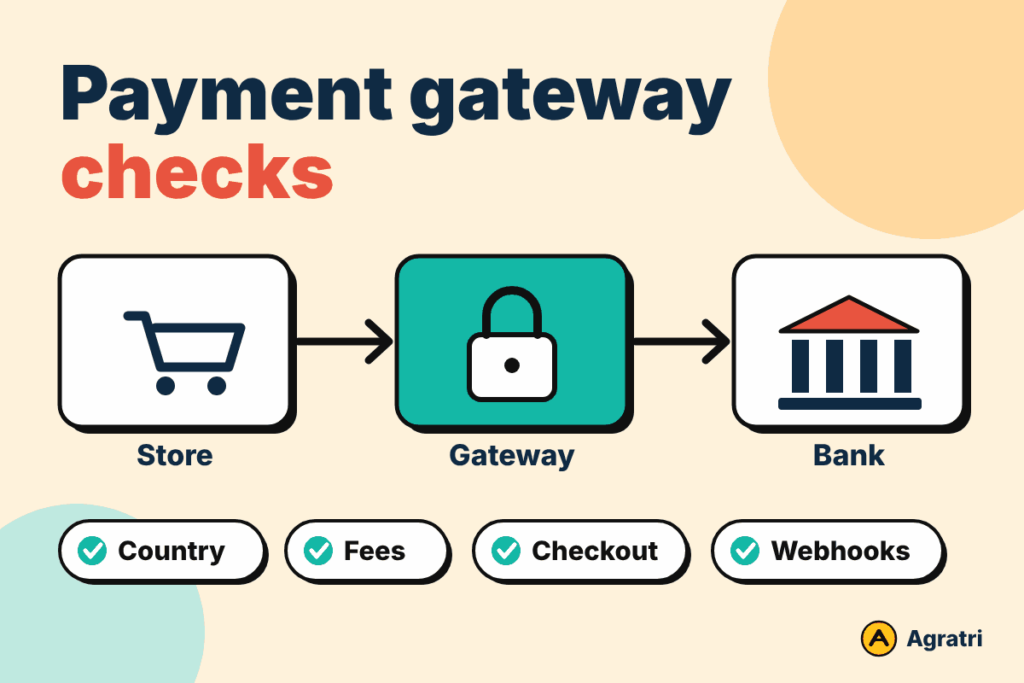
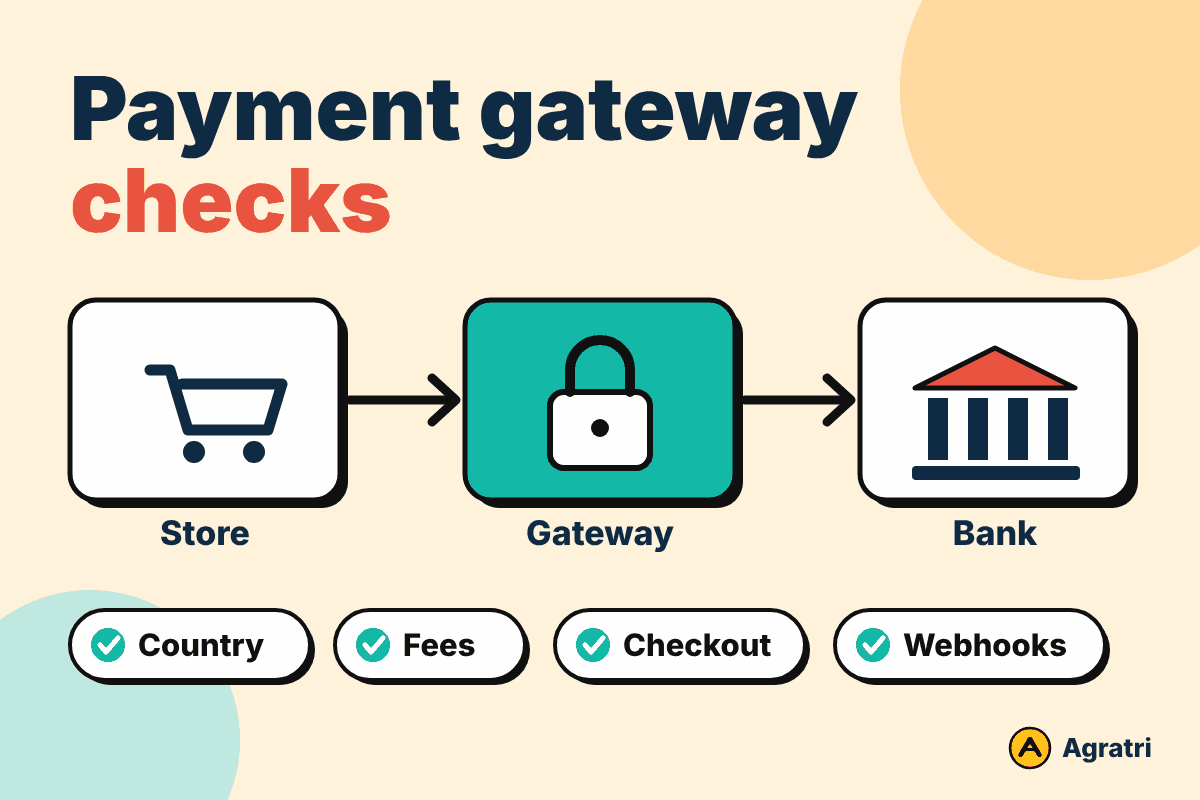
A WooCommerce payment gateway is the plugin that connects your checkout to a payment processor. When a customer clicks Place order, the gateway sends the payment details to the processor and waits for an answer. Then it tells your store whether the customer paid. In other words, it sits between your shop and the bank, so a weak choice affects every sale.
WooCommerce includes a few simple options for free, such as direct bank transfer, cash on delivery and check payments. However, these methods do not take card payments online. For cards and wallets, you need a WooCommerce payment gateway from a processor such as Stripe or PayPal, or from another provider that serves your region.
7 checks before you choose a payment gateway
Run these checks in order. First, rule out the gateways that cannot serve you. Then compare the rest on cost, checkout style and reliability.
1. Confirm it serves your country and currency
Start here, because a WooCommerce payment gateway may only serve merchants in certain countries. Your shop location and currency decide which providers you can use at all. Also check where your customers pay from. If you plan to sell abroad, look for multi-currency support before you build anything else.
2. Add up the full cost
The price of a WooCommerce payment gateway is more than the plugin. The WooCommerce documentation lists several costs: the plugin itself, sign-up fees, monthly or yearly fees and transaction fees. A small percentage per order looks harmless. However, it adds up fast on large orders or high volume. So write down every fee, then estimate the total for a typical month.
3. Choose hosted or on-site checkout
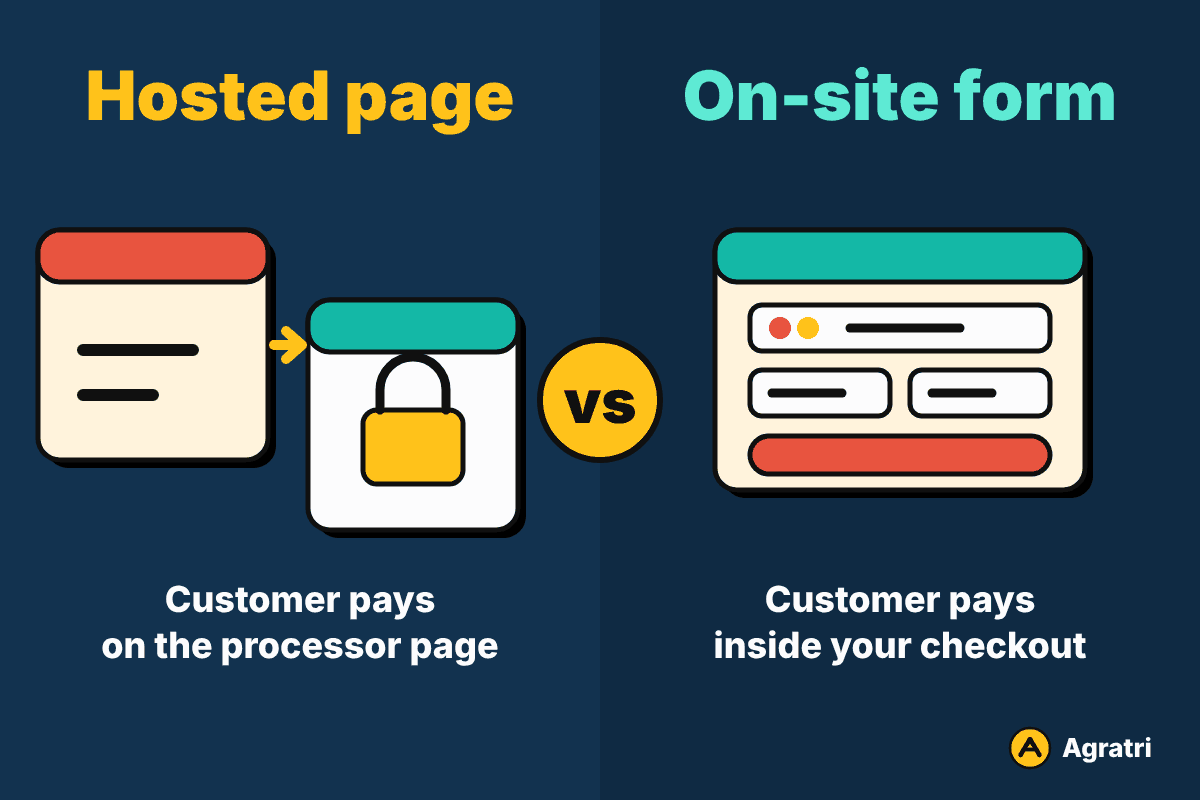
Gateways take payments in two main ways. With a hosted page, the customer leaves your site, pays on the processor’s page and then returns. With an on-site form, the customer pays inside your own checkout, often through a secure embedded frame.
Hosted pages usually reduce your security workload because card details never touch your server. On-site forms feel smoother and keep your branding. However, they need careful testing with your theme and plugins. In some regions shoppers prefer a familiar hosted page, while in others they dislike leaving the shop. So think about where your buyers live before you decide.
4. Match the gateway to how you sell
Think about what you sell. If you plan memberships or subscriptions, the gateway must support recurring payments. Otherwise, customers have to renew by hand every month. Next, check refunds. Some gateways let you refund from the order screen, while others do not. As a result, one missing feature can cost you hours later.
5. Check webhooks and order status
When a customer clicks Place order, WooCommerce creates the order with the status Pending payment. The gateway then sends a message, called a webhook, to say the payment worked. If that message never arrives, the order stays pending even though the customer paid. For example, a wrong signing secret or a blocked request can stop it.
So ask how your WooCommerce payment gateway handles webhooks and where it writes its error log. Good plugins make both easy to find. Also remember that WooCommerce has a hold stock setting, which can cancel unpaid orders after a set time. A stuck order may therefore disappear before you notice it.
6. Test with sandbox payments
Never launch on a guess. Most processors let you test a WooCommerce payment gateway in a sandbox. For instance, the Stripe testing guide lets you use the card number 4242 4242 4242 4242 with any future expiry date and any three-digit security code. Run a full test order, then check that the order status, the email and the stock level all update.
Also test a failed payment, because customers will meet one sooner or later. Finally, check how the checkout looks on a phone. Most shoppers will use one.
7. Keep the list of methods short
More choices do not always mean more sales. The official WooCommerce guide warns that too many payment methods can overwhelm customers and make store admin harder. Instead, offer the two or three methods your buyers actually use. You can add more later when you have real data.
Stripe, PayPal or a built-in option?
Most stores compare Stripe and PayPal first when they pick a WooCommerce payment gateway. Both are well known, both work with WooCommerce, and many shoppers already trust them. In general, Stripe suits stores that want payments inside their own checkout. PayPal suits stores that want a quick start and a familiar button.
You do not have to choose only one. Many stores offer a card option and a wallet side by side. However, whichever WooCommerce payment gateway you add, remember check seven and keep the list short. Before you decide, read the WooCommerce guide to choosing a payment option, because it covers cost, location and privacy in one place.
Set up your WooCommerce payment gateway the safe way
A careful setup protects your sales on launch day. Follow these steps in order.
- Back up your site before you install anything.
- Install the gateway on a staging copy if your host offers one.
- Add the test keys and run several test orders.
- Switch to the live keys and confirm that the webhook still reaches your store.
- Update your privacy policy so it names the payment processor.
The last step matters because payment plugins send customer data to the processor. As a result, you need to tell your visitors about it.
When a developer can save you time
Some stores need more than a plugin. If your WooCommerce payment gateway needs custom work, we can help. For example, a local payment method may need extra setup, or your CRM may need to hear about every paid order. Our WooCommerce development service covers cart and checkout optimization and payment gateway integration, and we run test orders from start to finish. If you need to connect gateways, webhooks or outside tools, our API and third-party integrations service handles that. In both cases you get one price and one timeline before work starts.
Not sure what a project like this costs? Read what drives WooCommerce development cost first. And if your checkout feels slow, our steps for fixing a slow WordPress site are a good place to begin.
Frequently asked questions
Which WooCommerce payment gateway is best?
There is no single best choice. The best WooCommerce payment gateway serves your country, fits your budget and supports your sales model. Stripe and PayPal are common starting points, but compare fees and features first.
Can I use more than one payment gateway?
Yes. WooCommerce lets you turn on several gateways at once. Keep the list short, so checkout stays simple.
Why does a paid order stay on Pending payment?
Usually the webhook did not reach your store. Check the gateway log, the webhook address and the signing secret. A developer can trace the cause if you cannot find it.
Is a hosted checkout safer than an on-site form?
A hosted page keeps card details off your server, so it usually reduces your security workload. However, it does not remove every duty. You still need to protect your site and explain data use in your privacy policy.
Do I need a developer to add a gateway?
Not always. A common WooCommerce payment gateway installs like any other plugin. You may want help if you need custom checkout fields, a local payment method or links to other tools.
Your next step
Shortlist two or three WooCommerce payment gateway options, run the seven checks on each, and test the winner in sandbox mode. If you would rather hand the work to a team, contact us with your store plan. We will reply with one price and one timeline before anything begins.