To update WordPress theme files without breaking your site, you need three things: a fresh backup, a test copy of your site and a safe home for your custom changes. Skip one of them, and a routine update can wipe out weeks of work. This guide shows how to do it in eight clear steps, and what to do if something goes wrong.
Whether you update WordPress theme files for your own site or for clients, the advice is the same. It works for free themes, bought themes and themes you have customized. Each step is short, so you can follow along with your own site open.
Why you should update WordPress theme files regularly
A theme is more than a design. It holds the code that builds your pages, menus and layouts. When the developer fixes a bug or closes a security hole, the fix only reaches your site if you update. So an old theme slowly becomes a risk.
Updates also keep your theme working with new versions of WordPress and with your plugins. For example, a layout feature that worked last year may clash with a newer plugin. Developers release updates to prevent those clashes, and they often add small speed gains too.
However, many owners delay each update because they fear a broken site. That fear is fair, because an update replaces the whole theme folder. Any edit you made inside that folder is lost. The steps below remove that risk.
What to prepare before you start
Good preparation takes about twenty minutes before you update WordPress theme files, and it saves hours later. Gather these four things first.
- A full backup. It must include your files and your database.
- A list of your changes. Note every edit you made to theme files and every snippet you added.
- The theme’s changelog. This file lists what changed in each version, so you know what to expect.
- A quiet time slot. Pick a time when few visitors are on your site.
Also check how your theme updates. Some themes update from the dashboard, while others need you to upload a new zip file. The seller’s page usually explains which way applies.
8 steps to update WordPress theme files safely
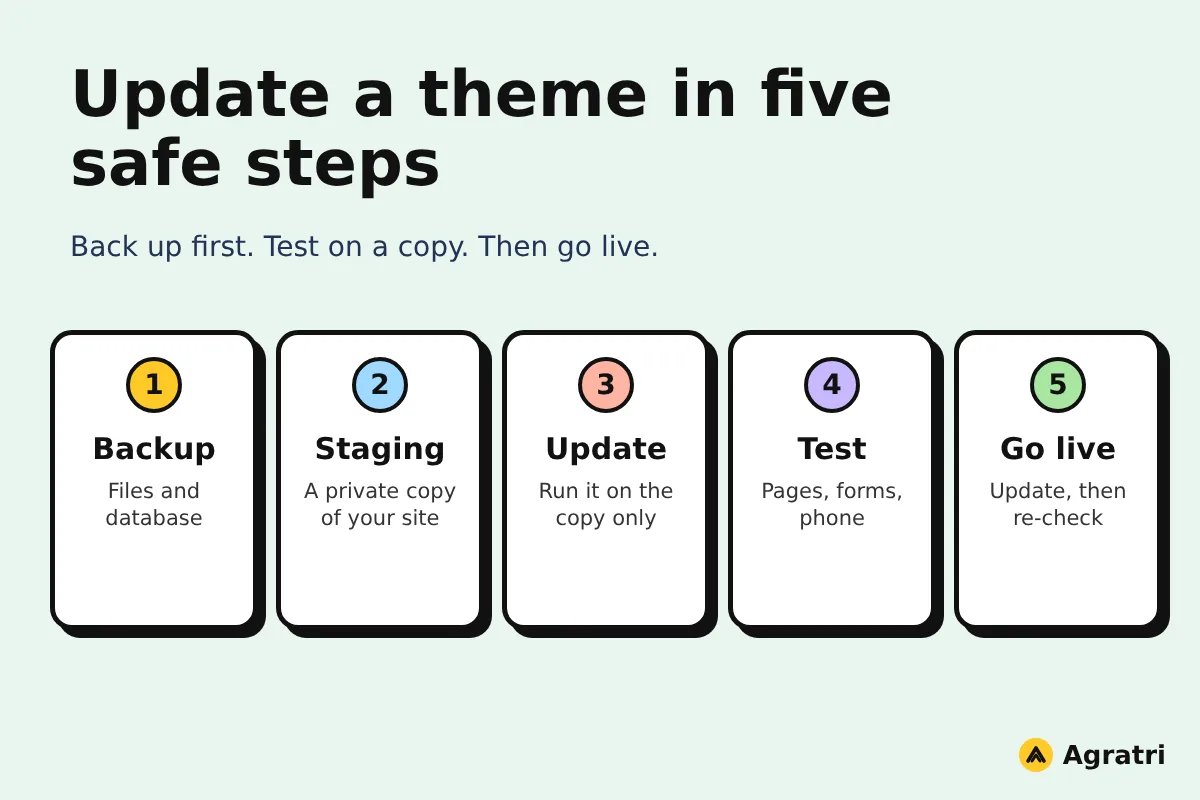
Follow these steps in order. Each one protects the next, so avoid skipping ahead.
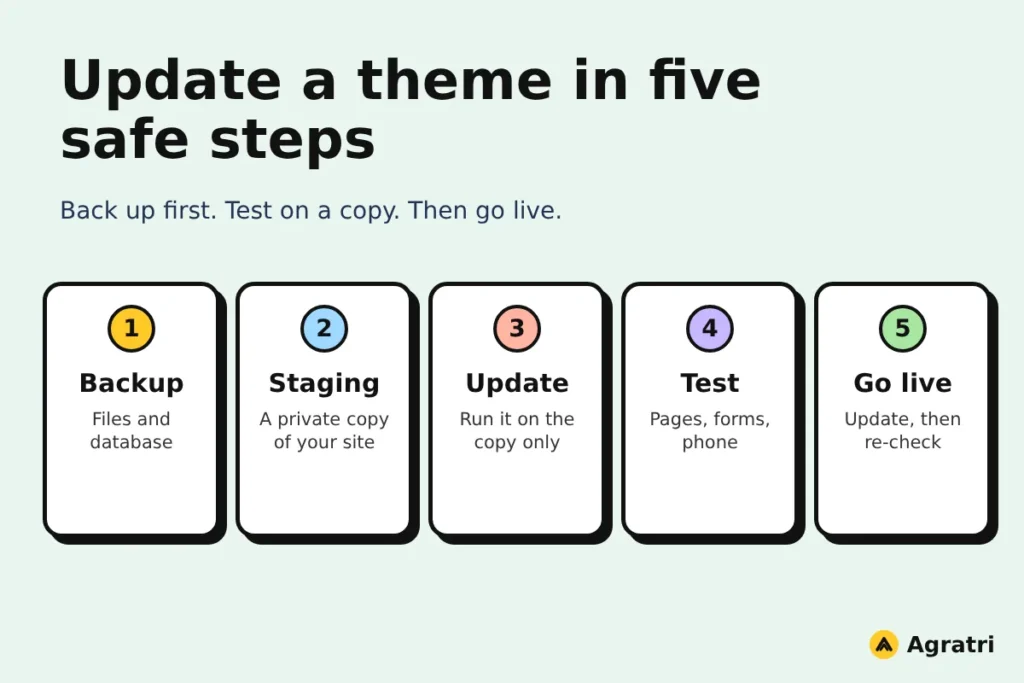
1. Take a full backup
Start with a backup of your files and your database. Do this even if your host makes daily copies, because you want a copy from this exact moment. Your host or a backup plugin can create both parts in a few minutes. Then download one copy to your own computer, so you can still restore it if the server has a problem.
2. Read the changelog
Open the changelog and look for big changes. Words such as “rewrite”, “removed” or “requires” deserve attention. For example, a new version may need a newer version of PHP. If it does, check with your host before you go on.
3. Check compatibility
Compare the theme’s requirements with your setup. Look at your WordPress version, your PHP version and your key plugins. Next, make sure the plugins that add features to your theme are up to date as well. If one of them lags behind, update it first or wait.
4. Create a staging copy
A staging site is a private copy of your live site. You can test the update there without any risk to real visitors. Many hosts offer one-click staging, and some plugins can build one as well. Then confirm that the copy looks exactly like your live site before you change anything.
5. Update the theme on staging
Now update WordPress theme files on the staging copy only. Use the dashboard if your theme supports it, or upload the new zip file. As a result, your live site stays untouched while you watch what changes.
6. Test the important pages
Open your home page, a blog post, a contact page and any page with a form. Then click every menu item and test the site on a phone. If you sell products, add an item to the cart and go to checkout. Finally, compare each page with your live site and note any difference in layout, fonts or spacing.
7. Update the live site
When staging looks right, repeat the update on your live site. Take a fresh backup first, because content may have changed since step one. Then update during your quiet time slot. Some owners also switch on maintenance mode for a few minutes, which shows visitors a friendly message.
8. Check the live site again
After you update WordPress theme files on the live site, repeat your page tests. Next, clear your site cache and your browser cache, since old files can hide the true result. Also check your page speed, because an update should never make pages slower. If everything works, keep your backup for a few days before you delete it.
How a child theme protects your changes
If you edit theme files directly, the next time you update WordPress theme files, those edits are erased. A child theme solves this problem. It is a small theme that sits on top of the main (parent) theme and holds your changes in separate files. When the parent theme updates, your child theme stays as it is. The official child themes handbook explains how the two work together.
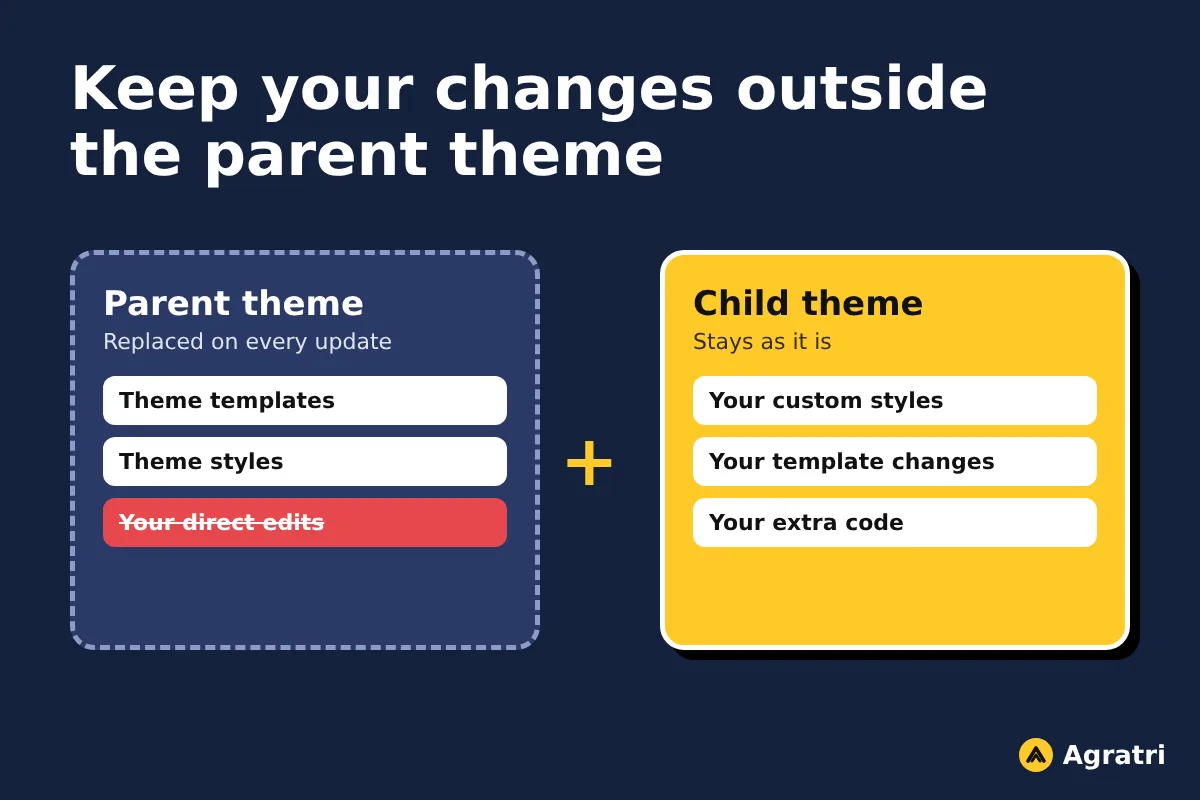
You do not need a child theme for everything. Basic theme settings do not need one. You do need a child theme when you edit template files, add PHP code or write a large amount of CSS. If you already edited the parent theme directly, move those changes into a child theme before you update.
Agratri builds customizations this way. Our theme customization service puts every change into a child theme, so you can keep updating the parent theme and keep your work.
What to do if the update breaks your site
Even careful owners who update WordPress theme files sometimes see a failure. Stay calm, because your backup gives you a way back. Work through this list in order.
- Restore the backup you took in step 7, or discard the staging copy if the problem appeared there.
- Clear every cache, then reload the page. Old files cause many problems that look serious.
- Switch off your plugins one at a time. A clash with a plugin is a common cause.
- Read the changelog again and look for a note about the change that broke your page.
- Contact the theme’s support team, and include your version numbers and a screenshot.
If you see a white screen and cannot reach the dashboard, ask your host to restore your last backup. Then repeat the update on staging until it passes every test.
When to ask for help
Some sites are too important to test alone. For example, a store that takes orders every hour cannot afford an error. In that case, a regular care plan makes sense. Our WordPress maintenance and support service covers core, theme and plugin updates, and we test each change before it goes live. To judge any plan, read our list of checks to make before you sign a WordPress maintenance plan.
If your theme needs changes that go beyond settings, compare your options in our article on theme customization vs a custom theme. It helps you decide how much work the site really needs.
Frequently asked questions
How often should I update WordPress theme files?
Check for updates at least once a month. Apply security fixes as soon as you have tested them on staging.
Will an update delete my posts and pages?
No. Your posts and pages live in the database, not in the theme files. Edits you made inside theme files are different, so keep them in a child theme.
Do I need a child theme to update WordPress theme files?
Only if you changed code or template files. If you only use the theme’s own settings, you can update without one.
Should I update on the live site or on staging?
Staging is safer, because a problem never reaches your visitors. If your host has no staging, take a fresh backup and update at a quiet time.
What if my theme has no update button?
Some themes update by uploading a new zip file instead. Check the seller’s page for the download and the exact steps.
Next step
You can update WordPress theme files safely when you follow the same order every time: back up, test, update, then check. If you would rather hand the job to a team, contact Agratri and tell us about your site. We will reply with a clear plan.