WordPress CRM integration means your site sends leads and customer data to your CRM on its own, so nobody has to copy it by hand. You can do it in three ways: with a plugin, with an automation tool, or with a custom API connection. This guide explains each one, shows when to pick it, and gives you a six-step plan.
It suits owners of service businesses, agencies and online stores that want WordPress CRM integration without wasted effort. By the end, you will know which questions to ask before you spend money on any option.
What WordPress CRM integration does for your business
A CRM stores your contacts, deals and follow-ups. Your website is often where those contacts first appear. Without a link between the two, someone must copy every enquiry from an email into the CRM. That takes time, and mistakes creep in.
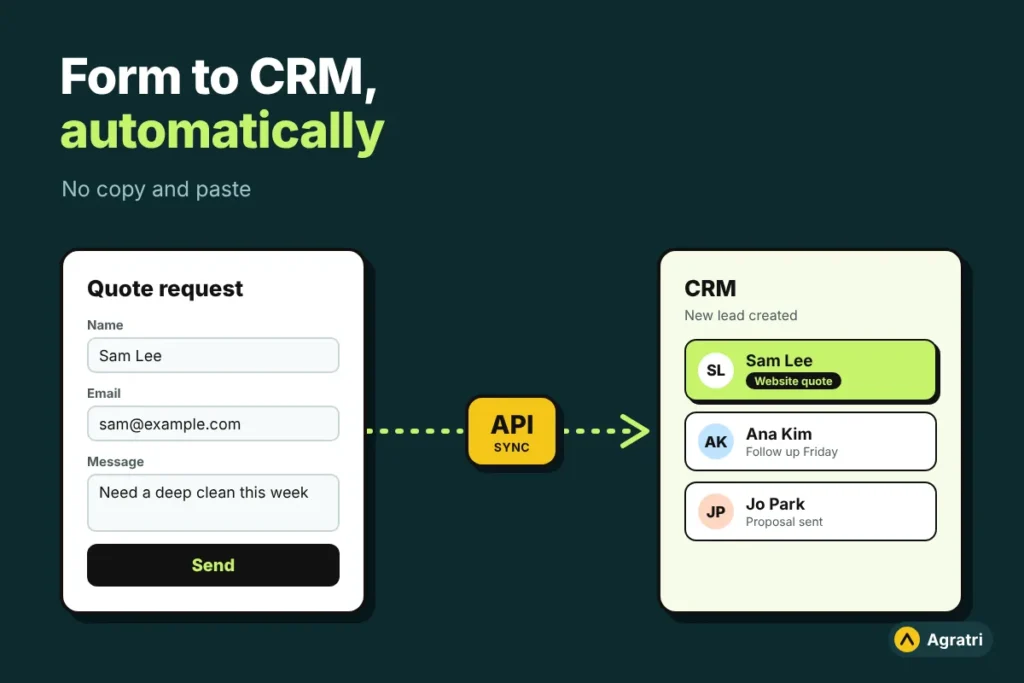
With a working WordPress CRM integration, the data moves by itself. A visitor sends a form, and a new contact shows up in the CRM within moments. Your team then follows up from one place instead of three.
Common things people connect
- Contact and quote forms that create new leads
- Newsletter sign-ups that join an email list
- Store orders that update a customer record
- Payment confirmations that mark a deal as paid
Three ways to connect WordPress to a CRM
Each method trades cost, control and effort. Start with the simplest one that covers your workflow, and move up only when you need to.
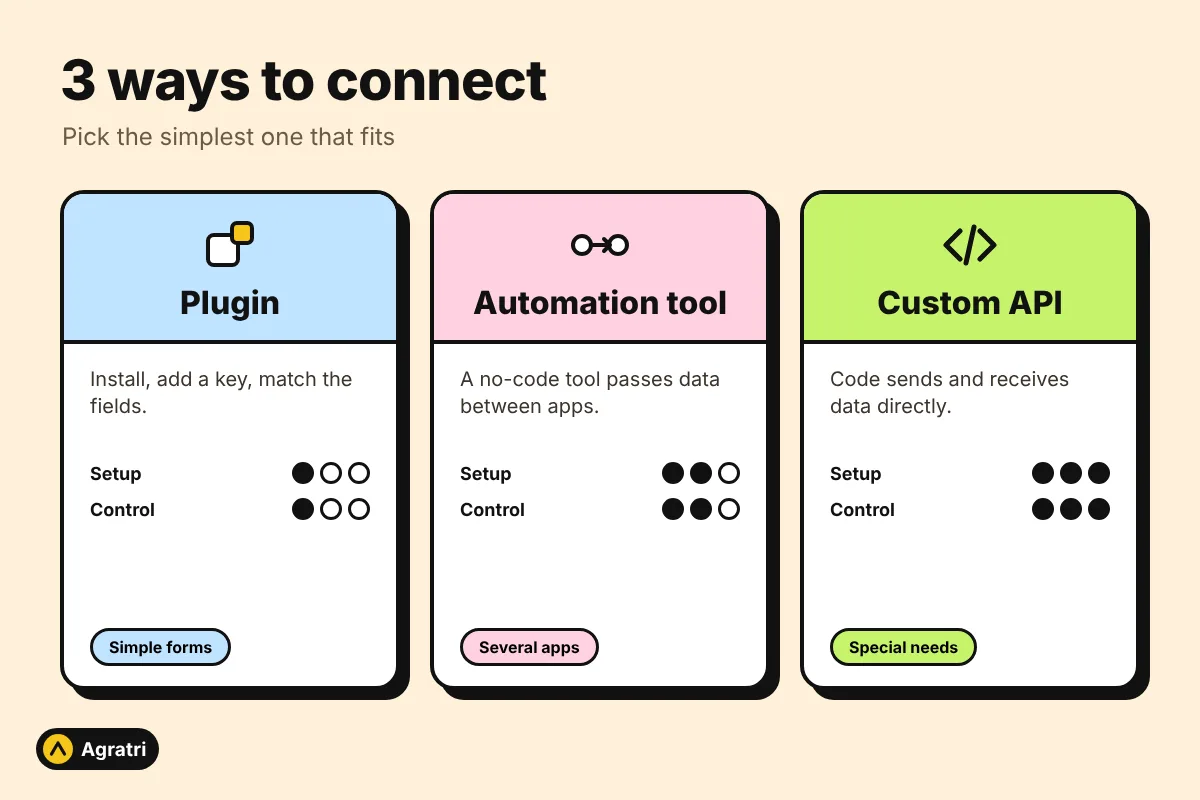
1. A ready-made plugin or connector
Many CRMs offer a WordPress plugin. You install it, paste in a key and match your form fields to the CRM fields. This route to WordPress CRM integration is quick and cheap. However, it only does what the plugin author planned. If your form has unusual fields, the plugin may not handle them.
2. A no-code automation tool
Automation tools sit between your site and your CRM. A form submission starts a short workflow, and the tool passes the data along. This works well for simple flows. On the other hand, you pay a monthly fee that grows with usage, and you add one more service that can fail.
3. A custom API integration
An API lets two systems talk to each other directly. A developer writes code that sends your form data to the CRM’s API. The CRM can also send updates back through a webhook, which is a message one system sends to another when something happens. WordPress has its own REST API too, and the WordPress REST API Handbook explains how it works.
A custom WordPress CRM integration costs more at the start. In return, you get exact control over fields, timing and error handling. It is the best fit when a plugin cannot do what you need.
How to choose the right WordPress CRM integration method
Three questions point you to the right answer. First, how complex is your data? Second, how many apps must share it? Third, what happens to your business if a lead goes missing?
- Choose a plugin when your CRM has an official plugin and your form is simple.
- An automation tool fits when you link several apps and your volume is low.
- A custom build fits when you need special fields, two-way updates or a service that has no plugin.
Money matters too. A plugin looks cheap, but a long list of workarounds adds up. A custom build costs more once, then runs without monthly tool fees. Compare the total for the first year, not only the first invoice.
Six steps to plan your WordPress CRM integration
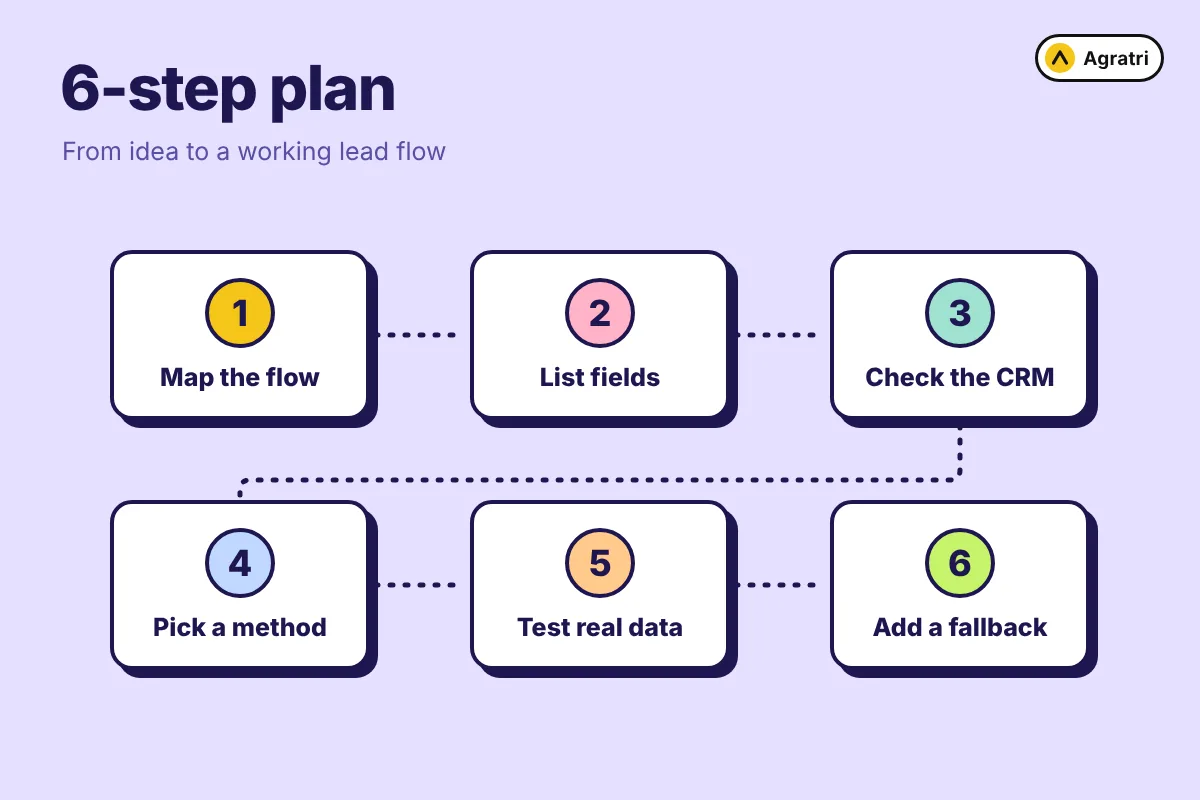
A clear plan saves hours of rework. Follow these steps in order, whichever method you choose.
- Write down the workflow. For example: “A visitor sends the quote form, and a new lead appears in the CRM with a tag.”
- List every field. Name, email, phone and message are easy. Dropdowns, file uploads and consent boxes need extra thought.
- Check what your CRM supports. Look for an API, a webhook or an official plugin in its documentation.
- Pick the method. Use the three questions above, and keep the simplest option that works.
- Test with real data. Send a few test leads on a staging copy of the site first. Then check that every field lands in the right place.
- Add logging and a fallback. If the CRM is down for ten minutes, the lead should still be saved somewhere and sent later.
Example: a quote form that feeds your CRM
Picture a cleaning company with a quote form on its site. Today, the owner reads each email and types the details into the CRM. Some days a lead waits until evening.
After a WordPress CRM integration, the form creates the contact at once. It adds a tag such as “website quote”, and it assigns the lead to a sales rep. The rep gets an alert and replies in minutes. As a result, fewer leads go cold, and the owner stops retyping data.
The same pattern fits agencies, law firms, coaches and stores. Only the fields and the tags change.
Mistakes that break a WordPress CRM integration
Most failures come from a few repeated problems. Watch for these before you launch.
- Exposed keys. An API key placed in front-end code can be read by anyone. Store keys on the server instead.
- No error log. Without a log, failed leads vanish and nobody notices.
- No fallback. One short outage at the CRM can break a form that depends on it.
- Duplicate contacts. Test what happens when the same person fills the form twice.
- Slow pages. Heavy code that runs on every page load hurts speed. Our guide to WordPress speed optimization cost shows what slows a site down.
Upkeep matters as well. CRMs change their APIs over time, so a connection needs care after launch. Our checklist for a WordPress maintenance plan covers tested updates and backups, which protect your setup.
When to hire help with WordPress CRM integration
A plugin is fine for a simple form. Hire a developer when your workflow has special fields, several tools or real money attached to each lead.
Agratri offers an API and third-party integration service for this kind of work. The service page lists CRM and email marketing connections, payment gateway integration, REST API and webhook setup, and custom forms that send data to your tools. It also lists secure key handling, error logging with fallbacks, testing with real data flows and documentation. You get one price and one timeline before work begins.
If you run a shop, you can pair the work with our WooCommerce development service. That way, orders and customer records stay in step.
Frequently asked questions
Can WordPress connect to any CRM?
Most CRMs work with WordPress if they offer an API or a webhook. CRMs, email platforms and payment gateways are common examples. Share your tool with a developer, and they can confirm what is possible.
How much does WordPress CRM integration cost?
The price depends on the method, the number of fields and the quality of the CRM’s API. Plugins often carry a licence fee, and automation tools charge monthly. Custom work gets a quote based on your workflow. Agratri sends one fixed price before it starts.
Is a plugin or a custom integration better?
A plugin is better for simple forms and common CRMs. A custom WordPress CRM integration is better when you need special fields, two-way updates or tight control over errors.
Is my customer data safe?
It can be, if the setup is done well. Keys stay on the server, requests are checked, and credentials never appear in front-end code. Ask any provider how they handle these three points.
What happens if the CRM changes its API?
Your WordPress CRM integration may stop working until someone updates it. Good documentation makes the update fast. Agratri documents each integration and can update it when a service changes its API.
Ready to connect your site to your CRM?
Write down your workflow and the tools involved, then send them over. We will confirm what is possible for your WordPress CRM integration and reply with a fixed price. Contact Agratri to start your project.