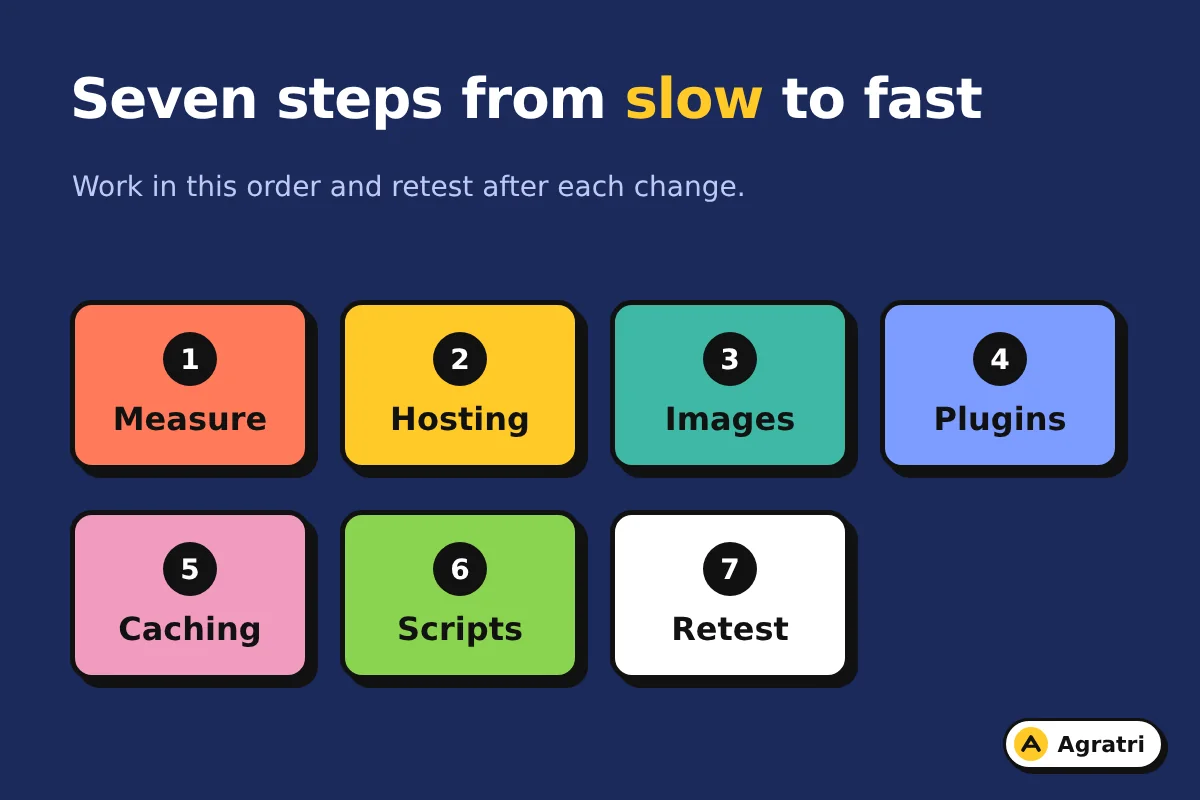
A slow WordPress site usually has a handful of fixable causes, and you can find most of them in under an hour. Start by measuring, then check hosting, images, plugins, caching and scripts in that order. This guide walks through seven steps, so you fix the biggest problem first instead of guessing.
Speed matters for a simple reason. Visitors leave a slow WordPress site quickly, and they rarely return. Google also measures loading, responsiveness and stability through Core Web Vitals. So a faster page helps both people and search.
Why a slow WordPress site loses visitors
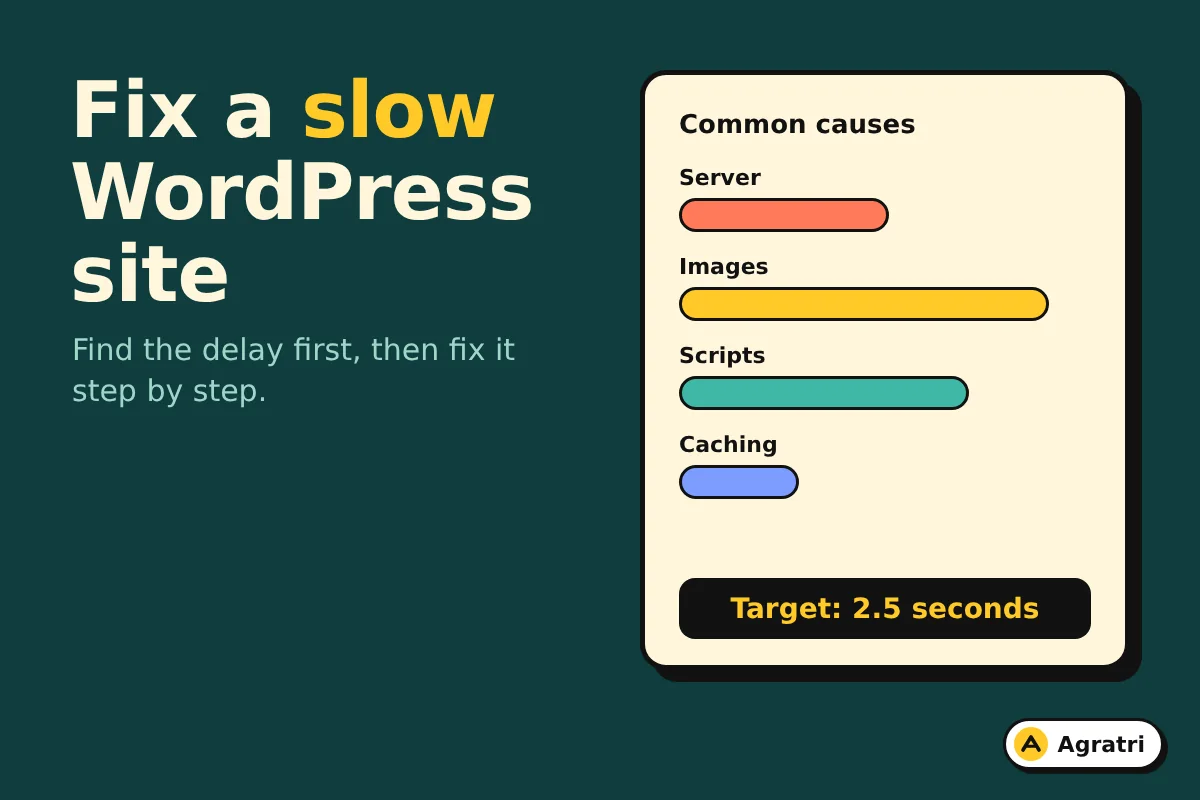
Most pages on a slow WordPress site share the same pattern. The server answers late, the main image is large, and too many scripts load before anything appears. As a result, visitors wait, and many give up before they read a word.
Google gives three targets for a good experience. Largest Contentful Paint (LCP) should be 2.5 seconds or less. Interaction to Next Paint (INP) should be 200 milliseconds or less. Cumulative Layout Shift (CLS) should be 0.1 or less. Google checks these at the 75th percentile of real visits, as the web.dev guide to Web Vitals explains.
One cause rarely explains everything
A single quick fix seldom solves a slow WordPress site on its own. Google’s own LCP guide says the same: you have to look at the whole loading process. For example, a smaller image helps little if a heavy script still blocks the page. So work through the steps in order and test after each one.
Step 1: Measure before you change anything
Fixing a slow WordPress site by guesswork wastes time. Numbers tell you where the delay really sits.
First, test your homepage and one key page, such as a service or product page. Use PageSpeed Insights, which shows real visitor data at the top and lab data below it. If both disagree, trust the real visitor data.
Next, write down three things:
- Which metric fails: LCP, INP or CLS.
- What the biggest element on the page is, usually a hero image or a heading.
- How long the server takes to send the first byte of the page.
Save screenshots of these results. Later, they become your proof that the fixes worked.
Step 2: Check your hosting and PHP version
Hosting sets the ceiling for everything else on a slow WordPress site. A slow server delays the first byte, and every other part of the page waits for it. Google warns that a high server response time can make a 2.5 second LCP hard or even impossible.
Also check your PHP version. WordPress.org currently recommends PHP 8.3 or greater, and it warns that older versions have reached end of life and may expose your site to security problems. You can read the full list on the WordPress requirements page. If your host runs an older version, ask them to upgrade it, and test on a copy first.
Step 3: Fix your images
Images are the most common weight on a slow WordPress site. A hero photo straight from a camera can be many times larger than the screen needs. So resize it to the size it actually displays, then compress it and save it as WebP.
Treat the main image differently
Your main above-the-fold image decides your LCP on many pages. Never lazy-load it, because that delays the exact image the browser should fetch first. Lazy loading is fine for images further down the page. In addition, make sure the main image sits in the page HTML and not inside a script, so the browser finds it early.
Step 4: Cut plugin and theme weight
Every plugin on a slow WordPress site can add scripts and styles to every page, even pages that never use them. As a result, a long plugin list often costs more than any single large file. Open your plugin list and mark three groups: needed, rarely used and forgotten.
- Remove plugins you no longer use, not just deactivate them.
- Replace two plugins that do one job with a single option.
- Check what your page builder and theme load on pages that use none of their features.
A heavy theme causes the same trouble. If your theme is the main problem, compare it with a lighter one before you rebuild everything. Our guide on choosing a business WordPress theme explains how to judge that.
Step 5: Add caching the right way
Caching saves a ready-made copy of each page, so the server does less work for every visit. Most hosts offer built-in page caching, and a good caching plugin can add browser caching too. Use one solution, not three, because overlapping tools often clash.
However, some pages should not be cached the same way. Cart, checkout and account pages change for every visitor. For that reason, stores need extra testing after any caching change.
Step 6: Remove render-blocking scripts and styles
A browser cannot show your page while it waits for large style sheets or scripts in the page head. Google suggests three fixes. First, remove unused CSS. Second, defer code that is not needed for the first view. Finally, keep the files that remain small.
This step is also where many owners of a slow WordPress site get stuck. Moving scripts can break menus, sliders or forms. So test every change on a copy of your site, and check the main pages on a phone before you go live.
Step 7: Retest and keep a record
Run the same tests from Step 1 again, on the same pages, to confirm your slow WordPress site is now faster. Then compare the numbers with your saved screenshots. Real visitor data updates slowly, so give it a few weeks before you judge the result.
Keep a short log of what you changed and when. If something breaks later, the log tells you where to look. Speed also drifts back as you add plugins and content, so repeat the check every few months. A WordPress maintenance plan can make that routine.
When a slow WordPress site needs expert help
You can handle images and unused plugins yourself. Deeper work carries more risk, because changes to scripts, caching rules or the database can break pages if testing is weak. So hire help when your site earns money, when it fails Core Web Vitals, or when downtime would cost you more than the service.
Our WordPress performance optimization service starts with a full audit. You then receive a clear list of issues, one price and one timeline before work begins. We take backups first, apply fixes on a safe copy and test everything before we deploy. You also get a before and after speed report. We do not promise a specific score, because every site is different. If you want to understand price first, read our guide to speed optimization cost.
Frequently asked questions
Why is my WordPress site so slow?
A slow WordPress site usually comes from slow hosting, oversized images, too many plugins, missing caching or render-blocking scripts. Measure first, because the data shows which cause hurts your pages most.
How fast should my WordPress site load?
Google’s target for the main content is an LCP of 2.5 seconds or less for at least 75 percent of visits. It also asks for an INP of 200 milliseconds or less and a CLS of 0.1 or less.
Will a caching plugin fix everything?
No. Caching helps the server respond faster, but it cannot shrink a huge image or remove a heavy script. Use it as one step in the list, not the whole plan.
Can I fix a slow site without a developer?
Yes, for simple causes such as large images, unused plugins and basic caching. Ask for help when the fixes involve scripts, the database or a store, because mistakes there can break pages.
Do I need a new theme to get a faster site?
Usually not. Most gains come from images, scripts, caching and plugins on your current setup. Change the theme only when the theme itself is the main cause.
Get your slow site checked
Now you have a clear order of work: measure, fix hosting, shrink images, trim plugins, add caching, clean up scripts and retest. If you would rather hand it over, contact Agratri and share your site address. We will start with a full audit and send you a list of issues before any work begins.