HTML to WordPress conversion turns a static HTML template into a theme that WordPress can run. You split the pages into template files, load the CSS and JavaScript the WordPress way, and swap fixed text for dynamic code. After that, you can edit pages, posts and menus from the dashboard instead of touching code.
This guide walks through the seven steps in order. It also explains when to do the work yourself and when to hire a developer. If you are still deciding between the two products, start with our comparison of an HTML template and a WordPress theme.
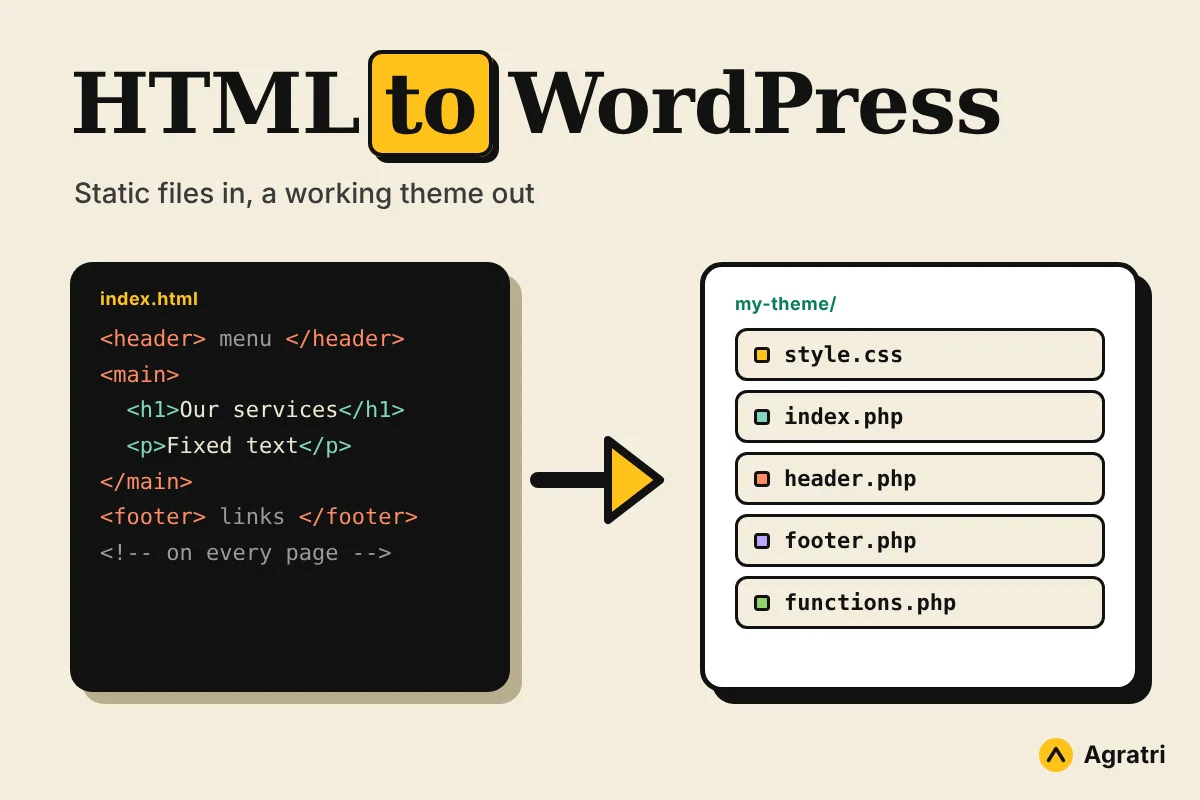
What does HTML to WordPress conversion involve?
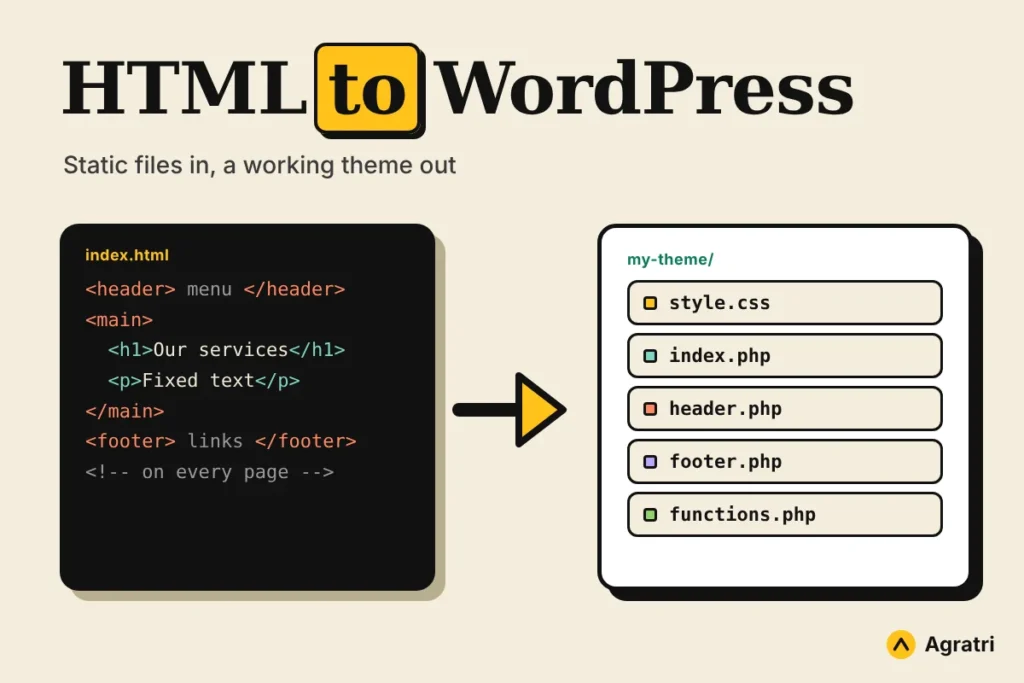
A static HTML template has fixed pages. Each page repeats the same header, menu and footer, so every text change means editing a file. WordPress works differently. It builds each page from small template files and pulls the content from a database.
The conversion therefore has one main job: turn repeated and fixed parts into reusable, dynamic ones. For example, the header becomes one file that every page shares. The menu becomes a list you edit in the dashboard. A news section becomes a loop that shows your latest posts.
Your design should not change. The fonts, colors and layout stay the same, but the structure behind them gets rebuilt. That is why a careful HTML to WordPress conversion keeps the original CSS and markup as much as possible.
What to prepare before you start
Good preparation saves hours in any HTML to WordPress project. Gather these items before you write any code:
- A full backup of any site you already run
- A local or staging WordPress install, so the live site stays safe
- The complete HTML package, including CSS, JavaScript, images and fonts
- A list of every page, with notes on which parts must be editable
- A list of features you need, such as contact forms, sliders or a blog
This list decides how much work the job needs. A five-page brochure site is a small task. A site with a blog, a portfolio and a booking form needs many more templates.
HTML to WordPress in 7 steps
The steps below follow the classic theme approach, which works on any WordPress install. The official WordPress Theme Handbook covers each part in more detail.
Step 1: Audit the HTML files
Every HTML to WordPress job starts with a page-by-page review, so open each page and mark what repeats and what changes. The header, footer and sidebar repeat. Page titles, text blocks, images and blog cards change. Next, write down which parts need a dashboard editor, because those become dynamic.
Also look for problems now. Check for broken links, unused scripts and images that are far too large. Fixing these early keeps the finished theme light and fast.
Step 2: Create the theme folder and style.css
Create a new folder inside wp-content/themes and name it after your project. Then add two files: style.css and index.php. A classic theme needs only these two to exist, and index.php is the one template WordPress cannot do without.
At the top of style.css, add a comment block with at least the theme name. Your template’s own CSS can stay in a separate file inside an assets folder. Finally, add an empty functions.php, because the next steps use it.
Step 3: Split the page into header, footer and index
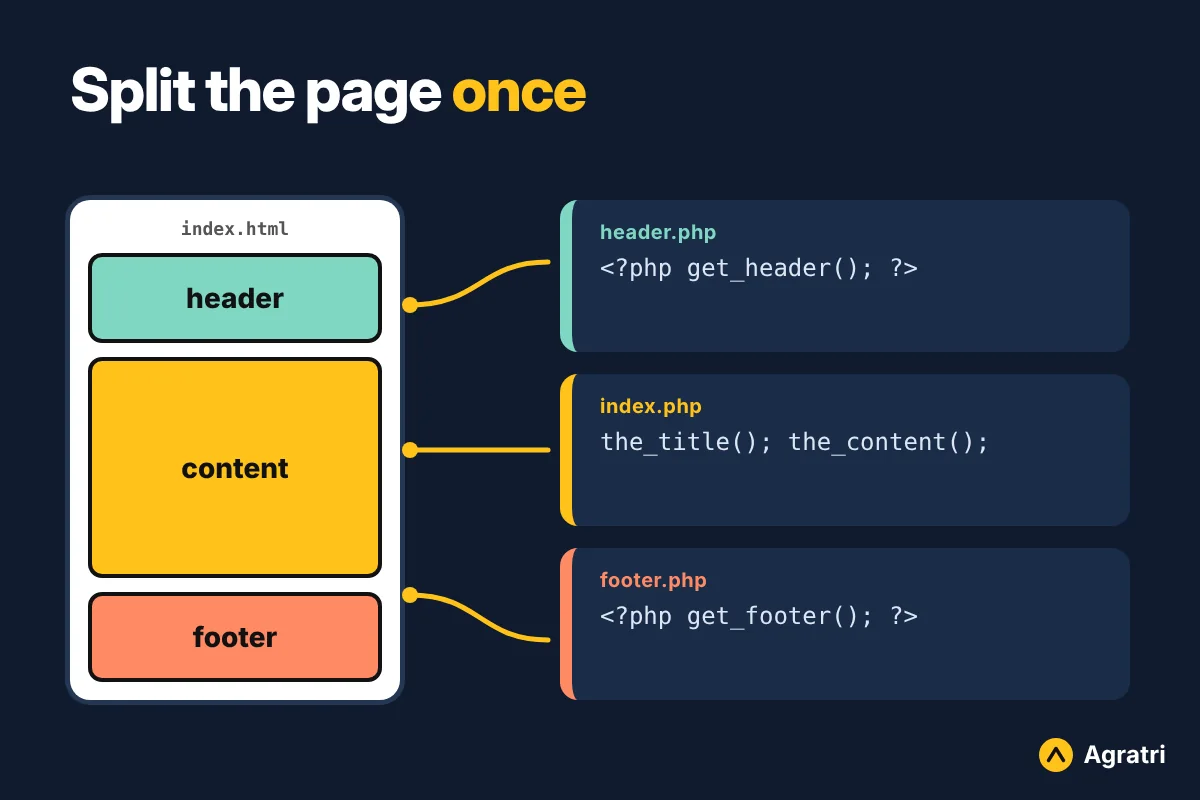
Take your main HTML page and cut it into three parts. Everything from the doctype to the end of the header goes into header.php. The footer goes into footer.php. The main content goes into index.php.
Then add the WordPress hooks. Place wp_head() just before the closing head tag, and wp_footer() just before the closing body tag. In index.php, call get_header() at the top and get_footer() at the bottom. Without these calls, plugins and scripts cannot load.
Step 4: Load CSS and JavaScript the WordPress way
Remove the hard-coded link and script tags from your template. Instead, load each file from functions.php with wp_enqueue_style() and wp_enqueue_script(), hooked to wp_enqueue_scripts. Use get_template_directory_uri() to build the file paths.
This method matters for two reasons. First, WordPress can manage load order and avoid duplicate files. Second, it keeps the code clean for future developers. If your template loads its own copy of jQuery, compare it with the copy that comes with WordPress to avoid conflicts.
Step 5: Make the content dynamic
Now replace the fixed parts one by one. Register a menu with register_nav_menus() and print it with wp_nav_menu(). Turn on the title tag with add_theme_support( ‘title-tag’ ), so WordPress writes the page title for you. Add post thumbnail support if your design shows featured images.
Next, swap the static text for the loop. Inside it, functions such as the_title() and the_content() print the real page content. Escape any value you print with functions like esc_html() and esc_url(). This habit protects the site from bad input.
Step 6: Add the templates your pages need
WordPress picks a template by following a fixed order, called the template hierarchy. If no specific file exists, it falls back to index.php. So you only add files where a page needs its own layout.
- front-page.php for the home page
- page.php for standard pages
- single.php for single blog posts
- archive.php for category and date lists
- 404.php for pages that do not exist
For a special page such as a landing page, create a custom page template. Add a Template Name comment at the top of the file, and it appears in the page editor.
Step 7: Test before you go live
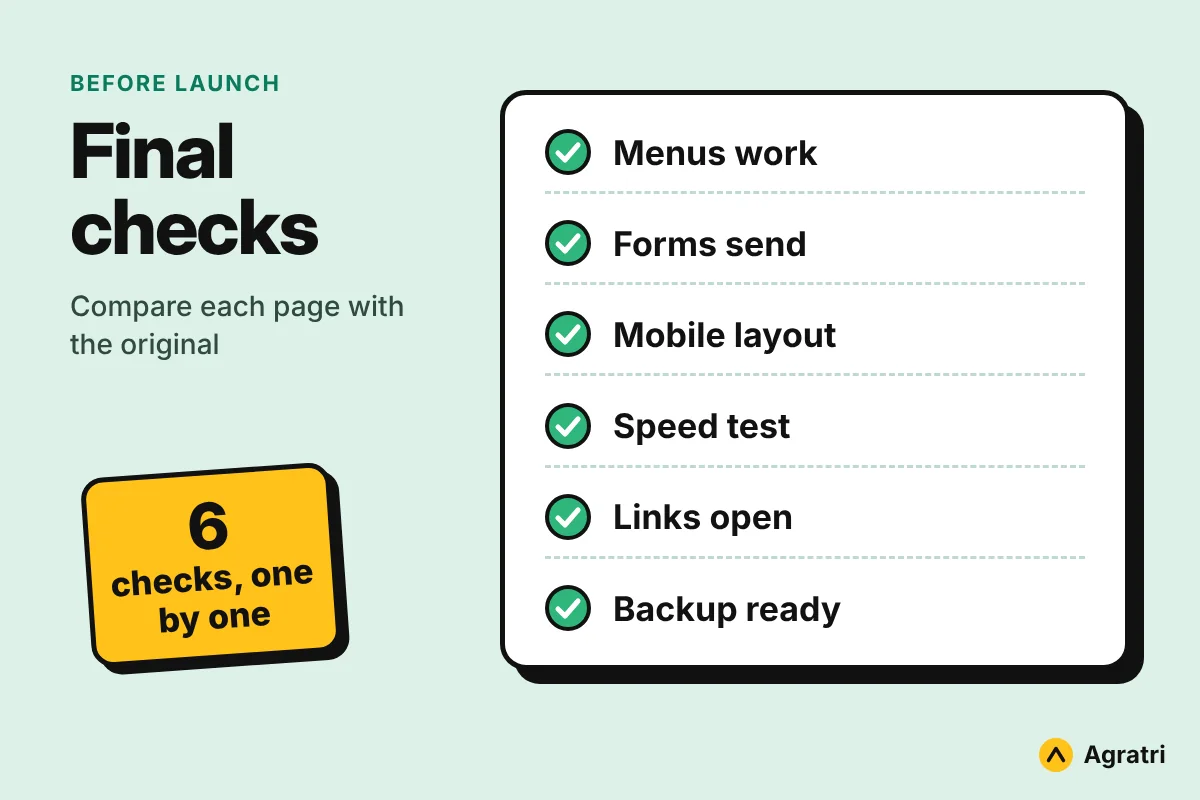
Compare every converted page with the original HTML, side by side. Check the menu, links, forms and mobile layout. Then run a speed test, because oversized images and extra scripts slow a theme down.
Finally, test your HTML to WordPress build on real devices and in more than one browser. Keep the backup ready, and move the theme to the live site only when every page matches the design.
Convert it yourself or hire a developer?
When doing it yourself works
A simple site with a few pages is a fair first HTML to WordPress project. You learn the template files, and the risk stays low. This route also suits developers who want full control of the code. Plan extra time for testing, because small mistakes in hooks or paths can break layouts.
When to hire a developer
Hire help when an HTML to WordPress project has many page types, a blog, a shop or custom features. The same goes for tight deadlines. Quick fixes and converter tools can leave messy code on complex templates, and that mess costs more to fix later.
Our custom theme development service builds themes from scratch with clean code, mobile-first layouts and testing across browsers. You send your design files or ideas with a short brief, and your HTML files can be part of it. We then confirm the scope and send one price and one timeline before development begins.
During the build, you get a staging link to review progress and request changes. The finished theme comes with documentation and support after launch.
Not sure what to budget for HTML to WordPress work? Our guide to what drives theme development cost shows how scope changes a quote. If your starting point is a design file instead of HTML, see turning a Figma design into a theme.
Common mistakes that break a converted theme
Most failed HTML to WordPress conversions come from the same few errors. Watch for these:
- Leaving old tags in place. Duplicate CSS and script tags slow the site and cause conflicts.
- Forgetting wp_head() and wp_footer(). Plugins, styles and scripts then fail to load.
- Hard-coding links and paths. Use WordPress functions so the theme works on any domain.
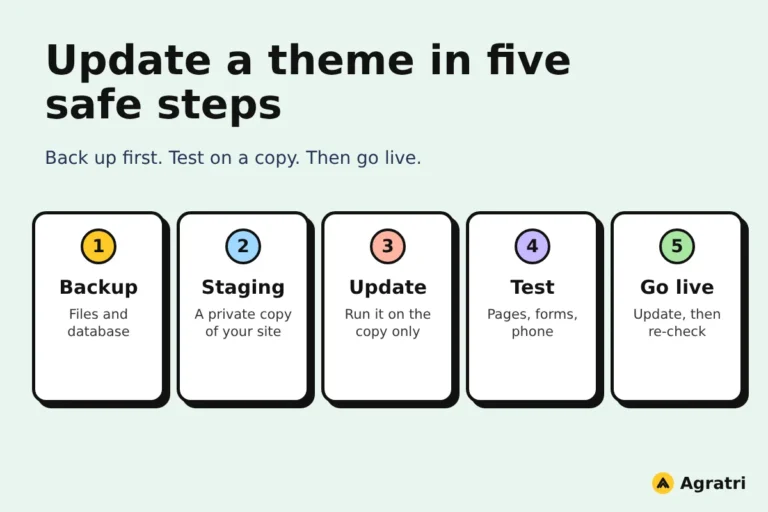
- Skipping the backup and staging site. Test on a copy first, never on the live site.
- Printing values without escaping them. Always escape output before it reaches the page.
- Skipping mobile tests. A menu that works on desktop can fail on a phone.
Frequently asked questions
Can I convert HTML to WordPress without coding?
For a very simple page, tools and builders can help. For a site with menus, a blog or custom layouts, expect manual work. A hand-built theme also gives cleaner code and more control.
How long does an HTML to WordPress conversion take?
It depends on the number of page types, dynamic parts and features. A brochure site needs far fewer templates than a site with a blog and forms. A good developer gives you one timeline after reviewing your files.
Will my design look the same after conversion?
It should. Keep the original CSS and markup, and replace only the fixed parts with WordPress template tags. Then compare each page with the original to confirm.
Do I need a child theme?
No, not for a theme you build yourself. A child theme is for changing a theme made by someone else, so that updates do not erase your edits.
Should I convert a template or buy a WordPress theme?
If a ready-made theme already fits most of your needs, buying or customizing one is often faster and cheaper. Convert your HTML when the design is unique and you want a theme built around it.
Your next step
Start with the audit in step 1, because it shows how big the job really is. Then decide whether to build your HTML to WordPress theme yourself or hand it over. If you want a clean, fast theme built from your design, contact us with your files and a short brief, and we will confirm the scope.